Compare a fresh print from the original file with a known-good sample. If both are pale, check stock and model-specific settings; if a label fades later, investigate handling and storage.
A label that leaves the printer pale is not the same problem as a label that looks good initially and becomes unreadable in transit. Note when the fading appears before changing settings. This page focuses on fresh output; the storage guide covers labels that deteriorate afterward.
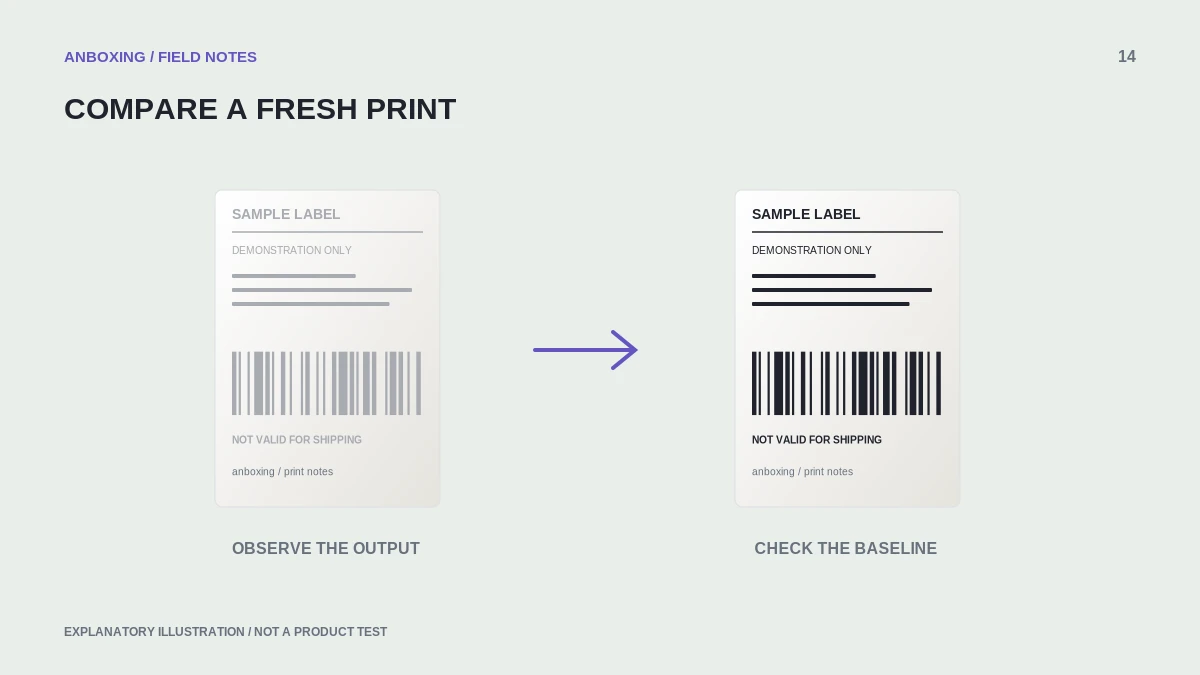
Describe the timing and pattern
| Observation | Starting investigation |
|---|---|
| Whole label is pale immediately | Source document, media batch, and print settings. |
| Only one strip is pale | Maintenance or a repeatable defect; see the white-lines guide. |
| Text looks normal but small barcode is weak | Source size, image quality, and scaling. |
| Fresh label is clear, later print fades | Heat, light, handling, and materials in contact with the label. |
Keep the first failing print beside a successful older sample if one is available. Do not use a photograph alone to compare darkness: lighting and camera processing can change how the output looks.
Compare a known-good file
Rollo’s faded-print guidance begins with a standard sample and considers stock, margins, darkness, and speed. Use that as a model-specific reference, not a universal numeric preset for every thermal printer.
Our recommended first comparison keeps the printer, stock, and application unchanged while switching only the document. If the standard sample is clear and the order is pale, inspect the order’s original file and size before increasing heat.
Make settings changes reversible
- Record current darkness and speed values or take a screenshot without sensitive information.
- Use the model’s recommended starting range, not settings copied from another brand.
- Adjust one variable by one supported increment.
- Print the same file on the same stock and compare fine lines as well as darkness.
- Stop increasing darkness if bars become heavy, background marks appear, or feeding deteriorates.
- Keep the best result only after a complete label passes your visual and operational checks.
Compare stock when settings are not the answer
A different media batch introduces another variable. Try a small amount of known-supported stock rather than buying a large replacement order. Note the supplier and batch so the comparison can be repeated. Confirm the labels were stored according to their supplier’s instructions.
Do not assume a direct-thermal printer needs an ink refill. For a printer using a different thermal technology, consult its actual consumable requirements. The words thermal printer alone are not a complete description of its supplies.
Check the finished shipping label
Inspect the smallest text, barcode spaces, and all required marks. A darker background with less distinct bars is not an improvement. Save the successful settings with the stock name, then print one actual shipment before resuming a batch.
If a defect remains in the same physical location on multiple known-good documents, stop chasing document settings and follow model-approved maintenance or support guidance. Do not scrape the printhead or apply an unapproved solvent.
Common questions
Is the darkest label always best?
No. The goal is legible, undistorted content with distinct barcode bars and spaces, not maximum overall darkness.
What if the label fades only after I attach it?
Use the storage and handling guide. Fresh print quality and later material degradation need different checks.
Sources & scope
Source-based editorial guide. Official documentation checked September 6, 2026. No hands-on product testing is claimed. Interfaces and compatibility can change; use the current instructions for your exact model.
- Rollo: labels are not dark enough
- Zebra: direct thermal versus thermal transfer
- Rollo: labels fading during transit
Illustrations explain a workflow or concept and are not evidence of product testing. Read the label-printer editorial policy.