Choose the symptom you can observe, not the cause you suspect. This tool recommends a starting guide; it does not connect to, scan, reset, or diagnose your printer.
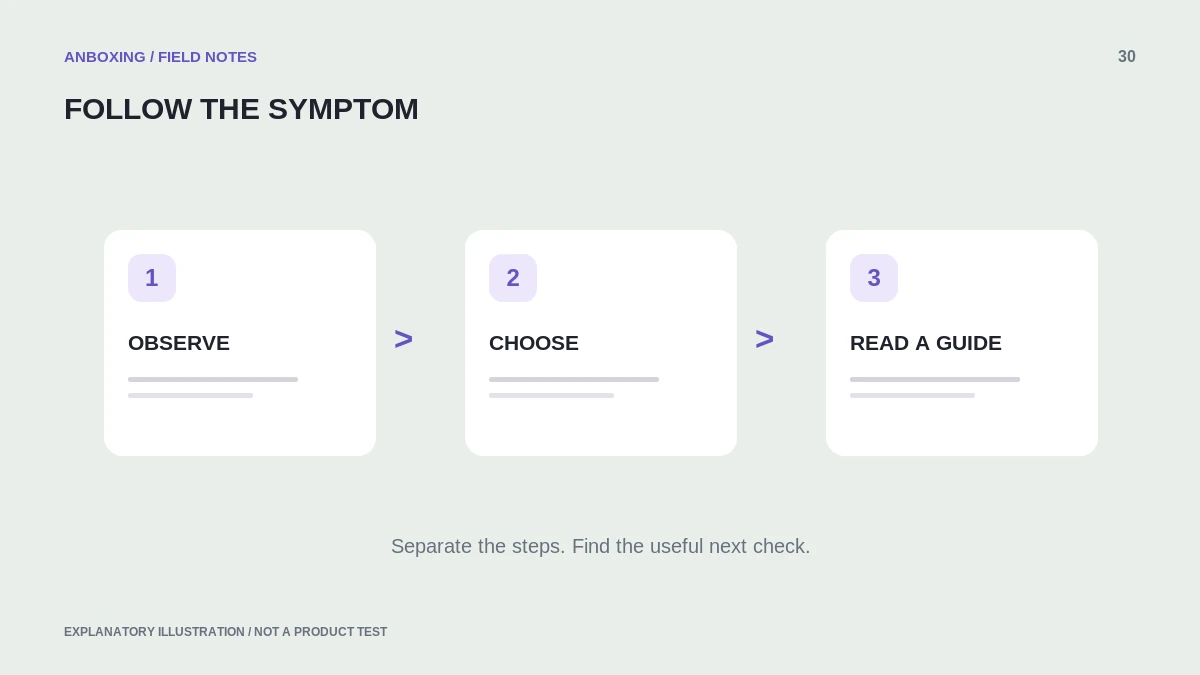
Start with what happens when you try one job: nothing moves, a blank label advances, a good label is followed by a blank, or the content is the wrong size. Keeping these symptoms separate is often more useful than changing settings at random.
Find your starting guide
How to use the result
The result links to a symptom-specific guide and, when relevant, a setup guide for the selected model family. Read the scope before taking action. A model-family selection does not verify a driver, detect firmware, or prove that a particular component has failed.
Keep the exact model suffix, operating system, connection method, and label dimensions nearby. The detailed guides use those facts to distinguish document, stock, connection, and maintenance problems.
Before any troubleshooting
- Cancel repeated pending jobs so changes do not trigger a surprise batch.
- Save the original document and use a non-sensitive sample for testing.
- Record current settings before changing them.
- Change one variable at a time and note the result.
- Stop for smoke, overheating, damaged wiring, or unsafe mechanical conditions.
- Follow the exact model’s official maintenance and recovery instructions.
No JavaScript? Start with the symptom
What the tool does with your choices
The symptom and model selections are processed in your browser by this tool. It does not upload a label, ask for an address, or send a command to the printer. Following a guide or external source loads the destination page normally; the site’s broader privacy policy still applies to ordinary site visits.
Do not enter passwords, order details, or tracking numbers into troubleshooting forms. When contacting a manufacturer, use a redacted screenshot or non-sensitive sample to show the problem.
Common questions
Is the result a confirmed diagnosis?
No. It is a routing aid to help you start with the most relevant guide. Confirm every model-specific step in the official documentation.
Does this tool reset or access my printer?
No. It uses only the choices you select and links to reading material. It has no printer connection or remote-control capability.
Sources & scope
Source-based editorial guide. Official documentation checked September 6, 2026. No hands-on product testing is claimed. Interfaces and compatibility can change; use the current instructions for your exact model.
- Rollo: blank labels
- Rollo: skipping labels or continuously feeding
- Microsoft: offline printer troubleshooting
Illustrations explain a workflow or concept and are not evidence of product testing. Read the label-printer editorial policy.