First check whether the feed problem occurs without a computer print job. Rollo identifies media learning and a mismatched job size as two common causes of skipped labels.
Calibration and page-size problems can look similar at the output slot. The difference is whether the printer can find the label boundaries on its own. This model-focused guide uses that distinction so you do not keep recalibrating a printer that is receiving the wrong document length. [Source]
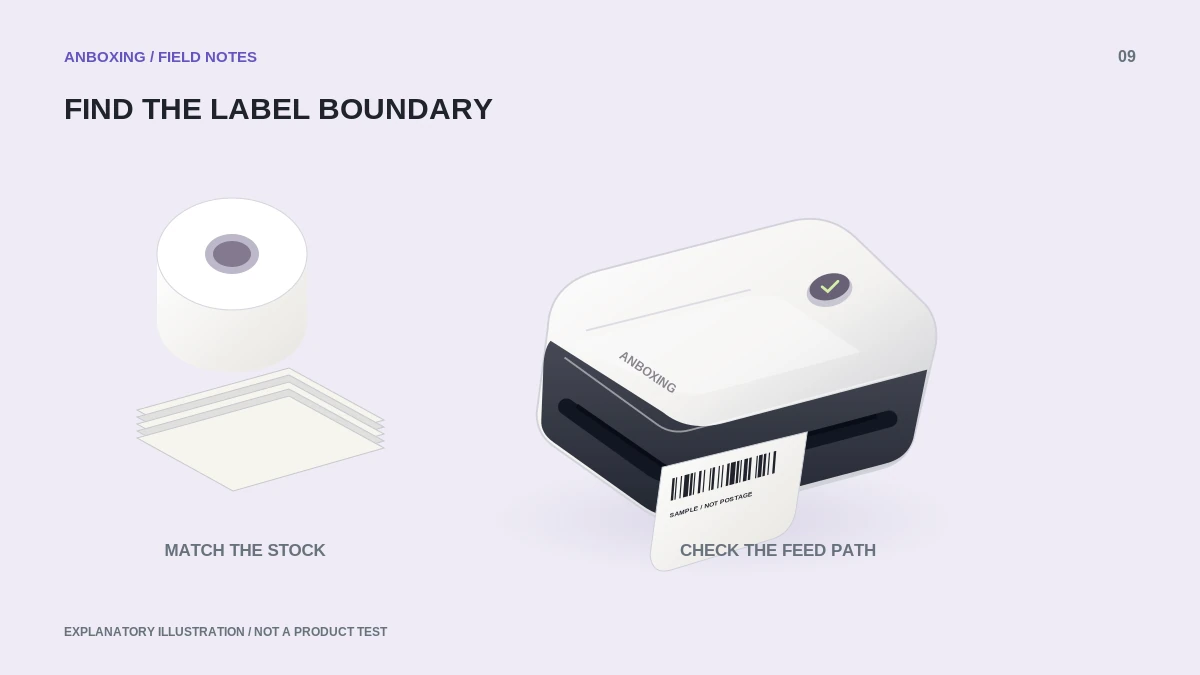
Observe one feed before sending another batch
Cancel pending jobs and follow the model’s instructions for testing media feed independently. Note whether it stops at a consistent label boundary. Do not repeatedly feed stock until the roll runs out; one short, observed test is more useful than a long uncontrolled run.
Record what changed immediately before the problem: label size, supplier, batch, holder position, application, or saved preset. A new roll and a new PDF viewer point to different starting checks.
Relearn the stock using the correct model procedure
Use Rollo’s current media-identification instructions for your model. Its support guidance describes a one-beep identification routine for the covered printers; do not confuse this with a test-print or reset sequence. Pause computer jobs while doing the feed test.
- Confirm the stock is compatible and is loaded in the correct direction.
- Check that the side guides hold alignment without pinching the liner.
- Run the model’s documented media-learning procedure.
- Observe whether feeding now stops consistently.
- Only after that succeeds, send a single correctly sized sample document.
If feed works but jobs still skip
Look at the actual document page size and the size sent by the application. A driver preset is only part of the route: a PDF viewer can send a different length. Compare the preview with the physical stock instead of trusting a preset name.
| Pattern | Likely area to investigate |
|---|---|
| Skips during a standalone feed test | Stock detection, loading, calibration, or the physical path. |
| Feeds correctly, skips only from one app | Application page size or document format. |
| First page aligns, later pages drift | Job length, repeated page dimensions, and feed consistency. |
| A good print is followed by one blank | Extra document page or an end-of-job feed setting. |
Check the desk arrangement too
As an isolation test, clear the entry and exit path and keep the stock aligned with the printer. A roll holder positioned at an angle, a tight bend in fanfold stock, or a cable touching the liner can complicate diagnosis. Do not pull the labels forward while the printer is moving them.
When the problem disappears, restore the packing setup one element at a time. Keep the working paper size and media batch noted. If calibration still fails with supported stock and a clear path, contact Rollo with the standalone-feed result.
Common questions
Should I calibrate after changing label suppliers?
Use the current model instructions. Rollo specifically associates skipping with changes in label type, size, or supplier, making media identification an appropriate check.
Are 100 x 150 mm and true 4 x 6 inch labels identical?
No. True 4 x 6 inches equals 101.6 x 152.4 mm. Match the actual stock and supported preset rather than assuming the names are exact equivalents.
Sources & scope
Source-based editorial guide. Official documentation checked September 6, 2026. No hands-on product testing is claimed. Interfaces and compatibility can change; use the current instructions for your exact model.
Illustrations explain a workflow or concept and are not evidence of product testing. Read the label-printer editorial policy.