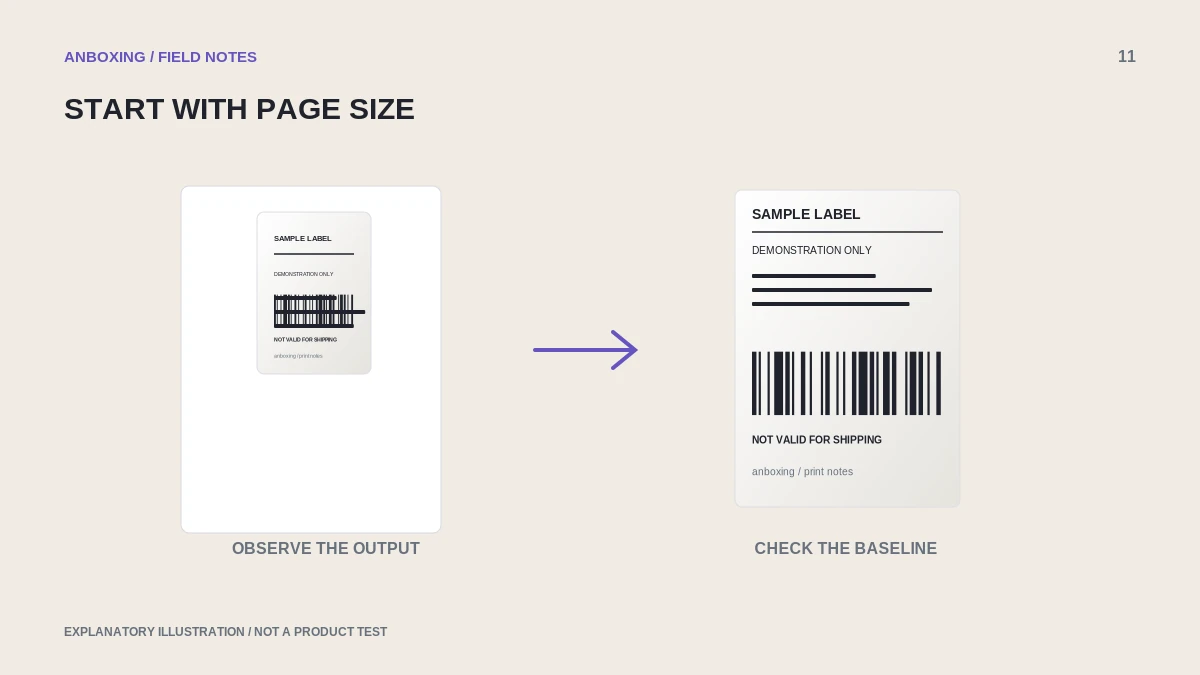
Compare three sizes: the original document page, the media selected in the app, and the actual label. A small label inside a large PDF page should be reformatted at the source.
When a shipping label lands in the center or corner of otherwise empty stock, replacing the printer is premature. MUNBYN has a dedicated small-label support article; use it with your exact model’s app or driver instructions rather than applying a universal zoom percentage. [Source]
Inspect the file before opening printer settings
Open the original downloaded document and look at the whole page. Is the shipping label the page itself, or only one item on a larger office sheet? Check for a packing slip, browser header, or large white border. A screenshot of that sheet preserves the same layout problem.
Write down the document dimensions when the viewer provides them. Then read the stock packaging and compare it with the print-dialog size. This replaces guesswork with a specific mismatch you can correct.
Choose the correct branch
| What you find | What to change |
|---|---|
| Label occupies part of an office-sized PDF | Request the supported label-printer document from the platform. |
| PDF is label-sized, selected paper is larger | Choose media matching the physical stock. |
| Both sizes match, scale is reduced | Review scaling and the model’s print guidance. |
| Only imported images are small | Use the original document and check the app’s import behavior. |
Do not increase scale until important content disappears outside the preview. A larger-looking barcode is not useful when the bottom routing information is missing.
Run a controlled comparison
- Keep the original failing file and obtain a known-good model-supported sample.
- Select the same verified printer and stock for both.
- Print one sample with the recommended format and settings.
- If the sample is normal, focus on the failing file’s page layout.
- If both are small, compare app and driver media settings and confirm the model-specific setup.
- After correcting the mismatch, print a single order and inspect every edge.
Phone and computer workflows may differ
A phone app can import a document differently from a desktop PDF viewer. Document the exact route: downloaded PDF, shared into an app, selected stock, and printed. Do not describe the test simply as Bluetooth printing, because that leaves out the application doing the layout.
On a shared computer, check which printer queue the application selected. A preset saved for a small product label can carry over to the next shipping job. Give stock-specific presets readable names rather than numbering them ambiguously.
Save the fix, not just the finished label
Capture a redacted screenshot of the successful preview and note the platform’s document-format setting. Keep the source file that produced the correct output. This gives you a reproducible test after a driver or app update and avoids rebuilding the workflow by trial and error.
Common questions
Is 100 percent scale always correct?
Not as a universal rule. First match the source and stock; then follow the model and application guidance and verify complete, undistorted output.
Why does one marketplace print correctly and another print tiny?
Compare the downloaded document formats. One may provide a native label page while the other includes the label inside a larger sheet.
Sources & scope
Source-based editorial guide. Official documentation checked September 6, 2026. No hands-on product testing is claimed. Interfaces and compatibility can change; use the current instructions for your exact model.
Illustrations explain a workflow or concept and are not evidence of product testing. Read the label-printer editorial policy.