Confirm the B suffix before following Bluetooth instructions. MUNBYN’s ITPP130B guidance separates Windows Bluetooth, Mac USB, and phone-app workflows.
ITPP130, ITPP130U, and ITPP130B are not interchangeable model names. The letter on the underside of the printer matters more than a shop listing that broadly says wireless label printer. Use this guide to choose the right setup route before you troubleshoot a connection that the device does not support.
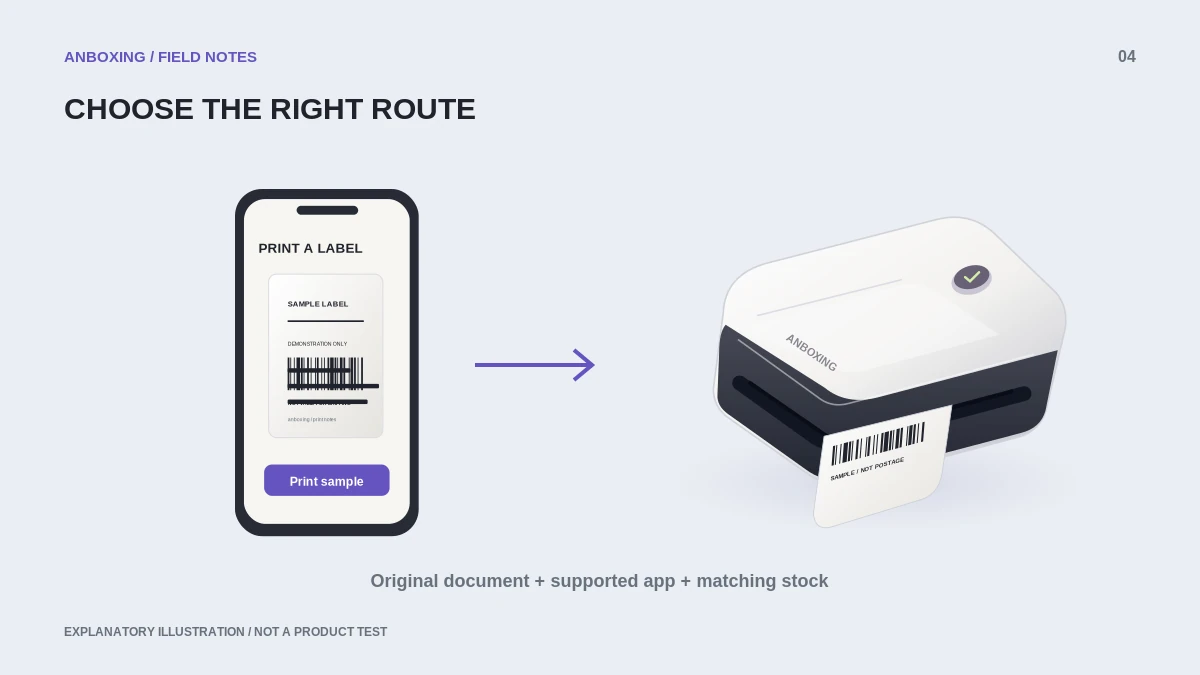
What the current model guidance says
MUNBYN’s Windows Bluetooth instructions identify ITPP130B as the Bluetooth model, direct Mac users to the USB workflow, and state that the referenced Bluetooth driver does not support ARM-based Windows. Verify that guidance against the current support page for your computer before installing.
This is a compatibility check, not a claim that every MUNBYN printer follows the same rules. Newer models, different apps, and later driver versions can have different requirements.
Choose a workflow before downloading
| Your intended device | What to verify first |
|---|---|
| Windows computer | ITPP130B model, processor architecture, and the current connection-specific driver. |
| Mac | The model’s supported USB setup and a data-capable adapter when needed. |
| iPhone or Android phone | The exact model’s supported app, file-import route, and connection instructions. |
| Chromebook | The model-specific Chromebook support path; do not substitute a Windows installer. |
A first-print sequence that exposes the problem
- Read the model from the device, not just the order receipt.
- Locate that model in MUNBYN’s support center and choose the operating-system and connection branch.
- Follow the instructed discovery process. Do not substitute ordinary system Bluetooth pairing when the driver or app uses its own setup flow.
- Load supported stock and run the model’s documented feed or test routine.
- Print a simple supported sample before importing an order document.
- Import one original label file and compare its page dimensions with the physical label.
- Save a successful preset and identify the working queue or app connection.
When two printer entries appear
Multiple entries can represent different connection paths rather than duplicate hardware. MUNBYN’s Bluetooth guidance describes this situation after installation. Test the intended path deliberately and give verified queues clear names instead of guessing which one should be deleted.
For example, label a working USB queue as Desk USB and a working Bluetooth queue as Laptop Bluetooth. These are your own descriptive names, not driver names you need to find. Keep a screenshot of the successful selection with any personal information removed.
Do not confuse setup with page scaling
Once a sample prints correctly, a tiny marketplace label usually deserves a document check before another reinstall. Open the original file, inspect its page size, and use the MUNBYN small-label guide if the order occupies only a corner of the stock.
Common questions
Can I use instructions for ITPP130B on ITPP130U?
Not for Bluetooth. Confirm the connection capabilities of the exact model and follow its own support branch.
Will pairing the printer in phone settings make every app print to it?
Not necessarily. A manufacturer-app workflow can require importing the file into that app. Native AirPrint and app-based Bluetooth printing are different capabilities.
Sources & scope
Source-based editorial guide. Official documentation checked September 6, 2026. No hands-on product testing is claimed. Interfaces and compatibility can change; use the current instructions for your exact model.
- MUNBYN: ITPP130B Windows Bluetooth setup
- MUNBYN: ITPP130B setup and troubleshooting
- Apple: print from iPhone or iPad with AirPrint
Illustrations explain a workflow or concept and are not evidence of product testing. Read the label-printer editorial policy.