Look for a thermal-label export in the original shipping platform before cropping. Changing the paper size alone scales or clips the whole page, not just the label.
A small label sitting on a large white PDF page is a document-format problem. The cleanest solution is usually to obtain the same shipment in the intended label-printer layout rather than reconstructing it from a screen capture.
Confirm what the file actually contains
Inspect the PDF’s page dimensions and the full page. Decide whether the surrounding material is merely instructions, a packing slip, or required shipping documentation. Do not remove unfamiliar service marks, routing codes, or accompanying documents just to make the page look tidy.
Then return to the platform that created the label. Look for its current paper-format or printer-type setting. A re-download in the right layout may avoid both image degradation and uncertain cropping.
Why Fit is not the same as crop
Adobe documents that fitting changes scale to fit the page within the selected printable area, while actual-size printing keeps the document scale and can clip content. Neither operation automatically detects the shipping-label boundary within a larger document.
Adobe: adjust PDF page size for printing
| Action | What it does not guarantee |
|---|---|
| Select 4 x 6 paper | That the original PDF contains a 4 x 6 page. |
| Choose Fit | That only the label, rather than the entire letter sheet, is scaled. |
| Choose Actual size | That all content fits within the smaller printable area. |
| Crop the page | That the remaining content has the correct final dimensions. |
Use a supported crop only when necessary
- Preserve the original PDF so you can compare the result or start again.
- Use the shipping platform’s own supported crop or label-conversion workflow when one is documented.
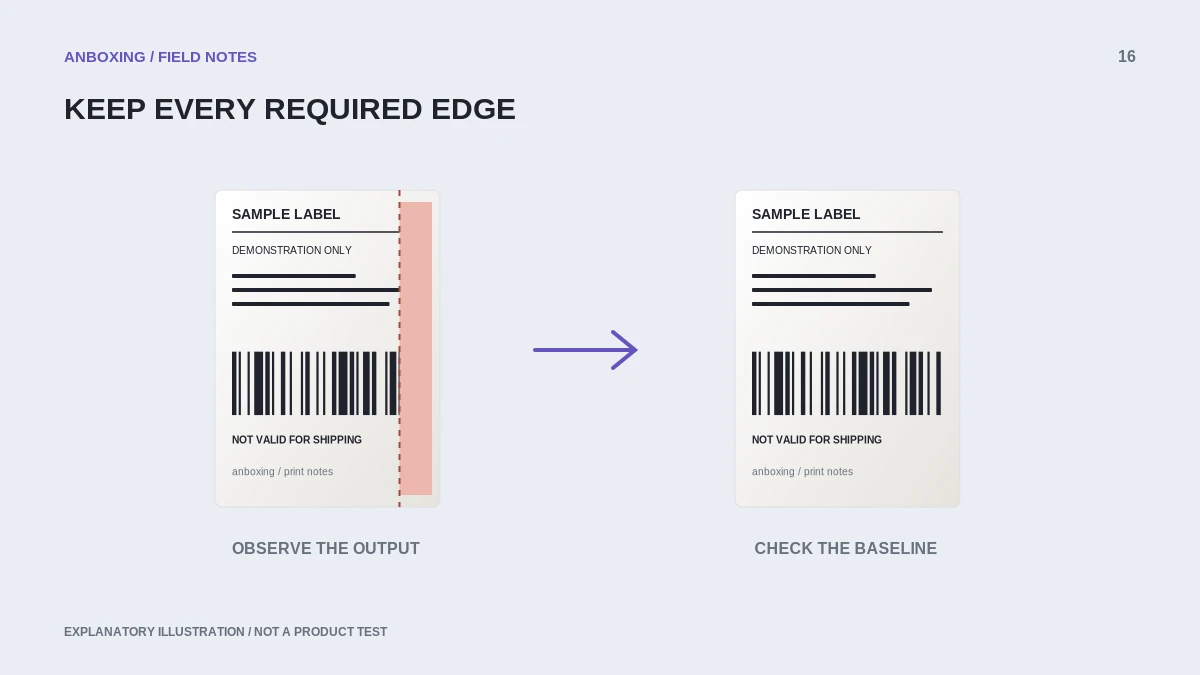
- Keep the complete label and all required marks. Do not crop based only on the visible barcode rectangle.
- Inspect the resulting page dimensions and orientation. A crop boundary and a physical output size are separate settings.
- Print one label on the actual stock and compare every edge with the original.
- When the result is uncertain, obtain the correctly formatted original rather than improvising another crop.
Avoid privacy and quality shortcuts
Do not upload customer labels to an unfamiliar online converter merely because it is convenient. The files can contain addresses, tracking information, and other order details. Use a trusted local or platform-provided workflow with appropriate access.
Do not redraw, stretch, or selectively edit a carrier barcode. For printer testing, use a non-postage sample document. Once the printing route works, return to the official shipment document and verify that the complete intended layout is preserved. Keep the original and converted file names distinct to prevent accidentally printing the wrong version later.
Common questions
Can I make a letter PDF into 4 x 6 by changing the printer setting?
That changes the output paper, not the underlying label layout. Check the export format first.
Should I remove the white space around a barcode?
Do not crop to the barcode alone. Preserve the full label and required blank areas from the original layout.
Sources & scope
Source-based editorial guide. Primary references checked September 9, 2026. Diagnostic sequences and comparisons are editorial guidance, not results of hands-on product tests. Confirm current instructions and compatibility for your exact model.