Use the original shipping-label document whenever it is available. A screenshot captures a display view, not a dependable physical page size.
A label can look clear on a phone and still print at the wrong size. The important questions are whether you preserved the complete document, retained the required detail, and matched the output to the intended paper.
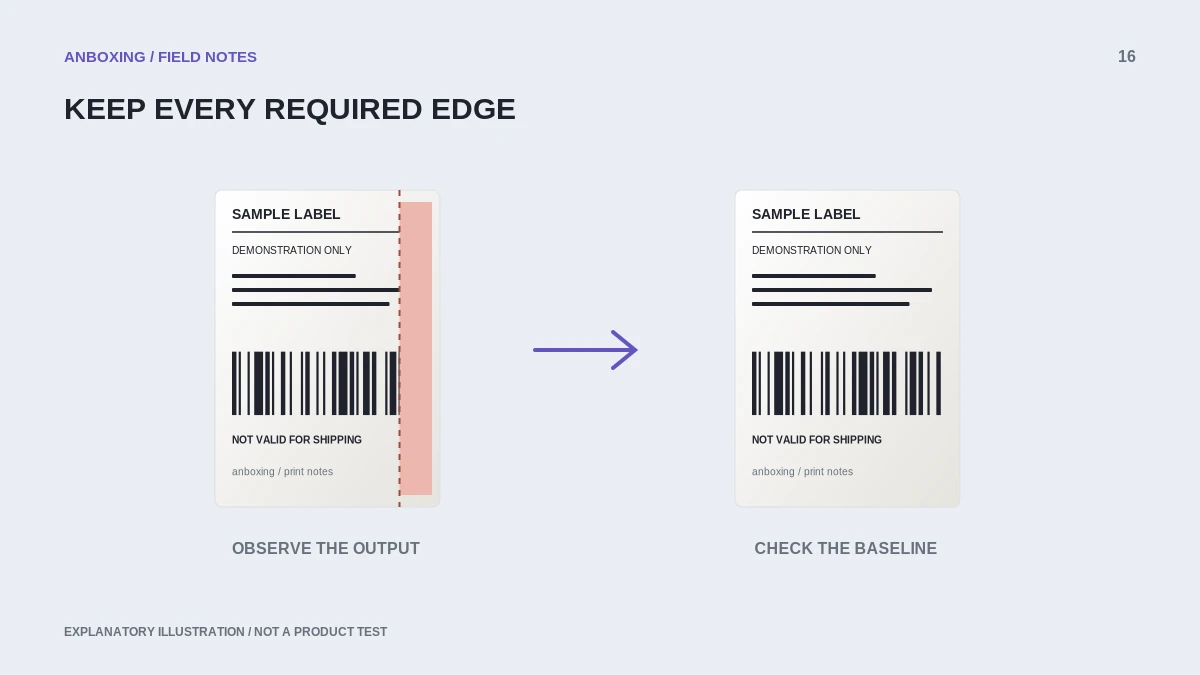
What changes when you take a screenshot
A screenshot records pixels from a particular view. It can include browser controls, margins, or only the visible part of a page. Cropping it introduces another decision about which marks belong to the label. The original PDF preserves the supplied page layout and can be inspected for its document dimensions.
This does not mean every PDF is already a four-by-six label. A platform may provide a letter-size sheet containing a label and instructions. Choose the thermal-label format at the source when that option is available.
Compare the two paths
| Question | Original PDF | Screenshot |
|---|---|---|
| Can I inspect document page dimensions? | Yes, in a suitable viewer. | Not as the original physical page definition. |
| Can content be hidden outside the visible screen? | Review all PDF pages. | Yes, depending on what was captured. |
| Does printing automatically guarantee acceptance? | No; inspect size and completeness. | No; added cropping and scaling require care. |
| Best starting point for troubleshooting | The original supplied file. | Return to the original file when possible. |
A PDF may still contain low-quality embedded images. File type alone is not proof of sufficient detail, so inspect the source as well as the print.
A document-first printing sequence
- Download the label directly from the shipping platform using its intended label-printer format.
- Open the saved file rather than printing the entire order webpage.
- Inspect the page dimensions, page count, address, service information, and barcode area.
- Select your actual stock size in the print dialog. Use scaling intentionally rather than accepting an unexplained automatic fit.
- Print one page and compare all edges with the source.
- Keep the original file until the shipment workflow is reconciled. Avoid sharing it publicly because it contains customer and shipment information.
Adobe: adjust PDF page size for printing
When a screenshot is all you received
Ask the sender or platform for the original label download first. If the workflow genuinely supplies an image rather than a PDF, follow that service’s printing requirements and verify the complete image at the intended dimensions. Do not invent missing margins or redraw shipping barcodes.
Use the printer’s normal sample document to test hardware separately. A questionable customer image is a poor baseline for diagnosing the printer. Once the hardware test works, investigate the document transformation rather than reinstalling the driver or raising darkness to compensate for missing detail.
Common questions
Is a PDF always sharp enough?
No. It can contain a low-resolution image. Use the original file and inspect its actual content.
Can I pinch the preview larger to set print size?
Screen zoom is not a reliable physical paper-size setting. Check the document and print dialog.
Sources & scope
Source-based editorial guide. Primary references checked September 9, 2026. Diagnostic sequences and comparisons are editorial guidance, not results of hands-on product tests. Confirm current instructions and compatibility for your exact model.