Choose the supported Android printing route before pairing anything. A Bluetooth connection alone does not mean the printer will appear in every app.
An Android phone can be the whole shipping workstation, but the order app, document viewer, print service, and printer still have to cooperate. Use one saved label file to prove the connection before testing an entire order workflow.
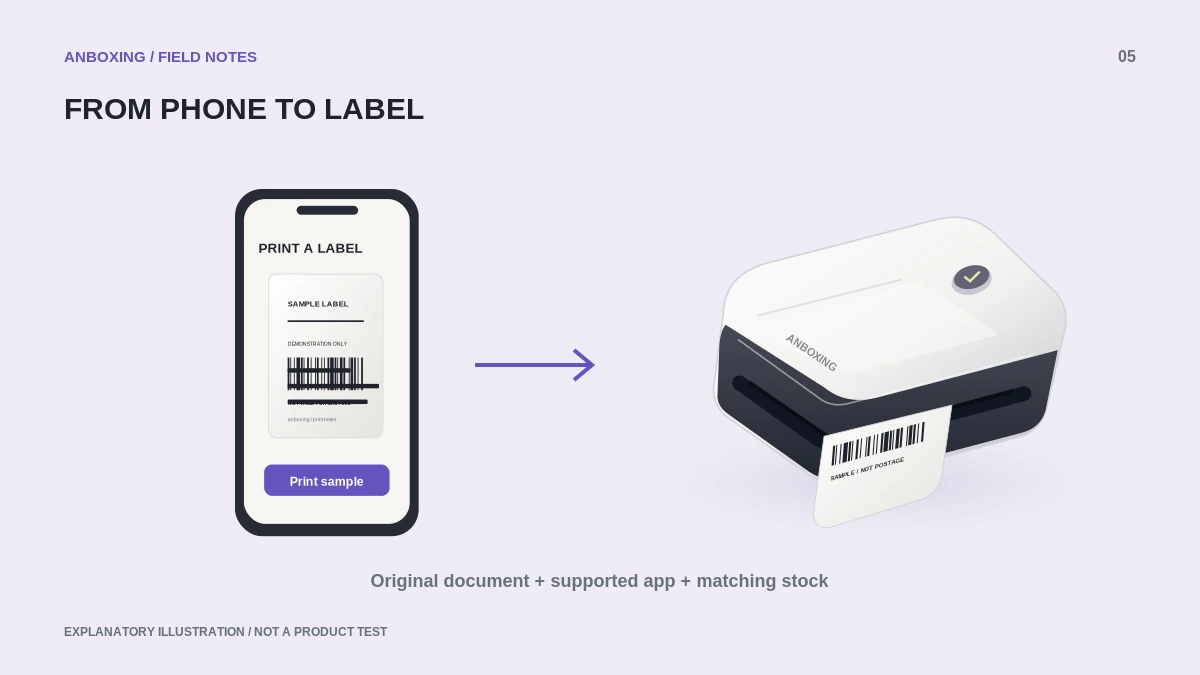
Identify the printing route
Find the complete printer model number and the manufacturer’s Android setup page. Check whether it uses a vendor app, a supported Android print service, or another documented workflow. Do not assume the USB, Bluetooth, and Wi-Fi versions of the same printer share the same capabilities.
Google documents Android printing through enabled print services and notes that printing options depend on the app. Its Pixel menu path is not a promise that a Samsung or other device uses identical menus.
Google: printing from a Pixel phone or tablet
A first-label workflow
- Download the original shipping label as a PDF in the platform’s thermal-label format. Keep the file in a location you can find again.
- Install only the app or print service linked by the printer manufacturer. Check the developer name before allowing access to local files or nearby devices.
- Connect using that app’s documented sequence. Some printers are selected inside the app rather than paired first in Android Bluetooth settings.
- Open or share the original PDF into the supported printing app. Select the actual printer and the paper dimensions printed on your label carton.
- Choose one page and one copy. Inspect the preview for missing service marks, an unwanted second page, or a shrunken label.
- Print one label, compare its address and tracking number with the order, and only then process additional parcels.
Where the process can break
| What you see | What to check |
|---|---|
| Printer absent from system Print menu | Whether this model needs its own app rather than the system print service. |
| Printer paired, but nothing prints | Whether the chosen app supports this connection and model. |
| Test document works, marketplace label does not | Original file type, page dimensions, and import options. |
| Tiny or cropped output | Paper size and scaling, not Bluetooth pairing. |
An adapter that physically fits is not evidence of USB printing support. Obtain model-specific confirmation before buying a USB-C adapter for an Android-only workflow.
Keep a repeatable setup
Save the successful PDF and note the phone model, Android version, app version, connection, and selected size. Reuse that exact test after an update. When a failure appears, change one element and print one page rather than reinstalling everything.
Avoid printing a screenshot of the order page as your normal shipping workflow. A saved carrier PDF is easier to check for complete content and intended dimensions. If the order app cannot export it, use its supported browser or desktop route instead of guessing at a crop.
Common questions
Does Bluetooth support guarantee Android printing?
No. Confirm the exact printer model and the app or print service the manufacturer supports.
Should I give a printing app access to every photo?
Grant only the permissions needed for your documented workflow. Import the label file explicitly when the app allows it.
Sources & scope
Source-based editorial guide. Primary references checked September 9, 2026. Diagnostic sequences and comparisons are editorial guidance, not results of hands-on product tests. Confirm current instructions and compatibility for your exact model.