Check the document page count first, then compare a single-page sample. If the extra feed occurs without a print job, investigate media detection rather than deleting PDF pages.
This guide is for one correctly printed label followed by an unwanted blank. It is not the same as every label printing blank, nor necessarily the same as continuous uncontrolled feeding. The sequence matters because a document and a printer can each request extra movement for different reasons.
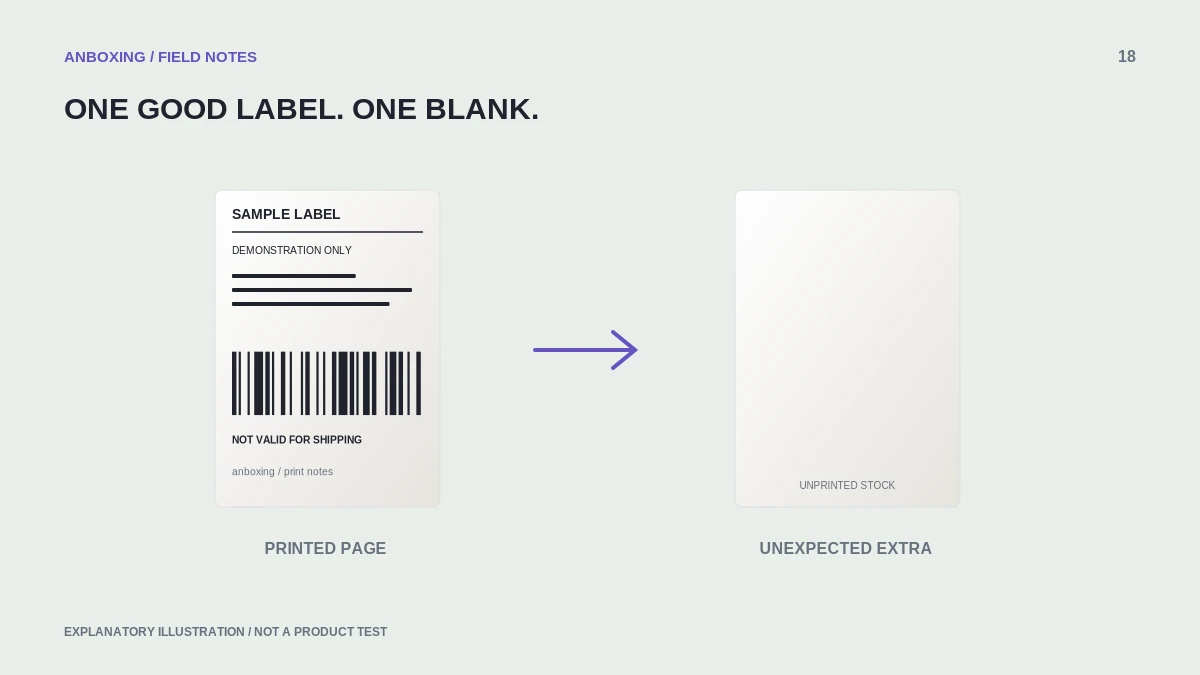
Count pages before counting wasted labels
Open the original document and inspect every page. Look for an empty page, a packing slip, or another document generated with the shipment. Confirm the selected print range and copy count. A blank-looking page can still be an actual page in the job.
Do not delete accompanying documents unless you know they are unnecessary. Customs forms, packing slips, and shipping labels can require separate sizes or handling. Identify the role of each page before changing the print range.
Use a one-page comparison
- Cancel queued duplicate jobs and keep the original file.
- Choose a known-good, single-page sample appropriate to the stock.
- Print exactly one copy and observe the full feed sequence.
- If it produces no extra blank, compare the original document’s pages and dimensions.
- If it also produces an extra blank, check media settings and the model’s feed behavior.
- Test the documented standalone feed routine if the model supports one.
- Relearn the media only when the model guidance and feed result make it appropriate.
Separate job length from label detection
| Result | Where to focus |
|---|---|
| Only one multi-page file produces the extra label | Page range and blank or accompanying pages. |
| All jobs do it, standalone feed is normal | Sent page length and model-specific end-of-job settings. |
| Standalone feed also misses boundaries | Stock compatibility, loading, and calibration. |
| It happens only after changing stock | Actual dimensions, stock detection, and the saved preset. |
A familiar 4 x 6 preset name does not prove the actual sent dimensions. Check both the application and driver when they expose separate paper options.
Do not mask the symptom with a custom crop
Cropping the printed label shorter may appear to stop an extra feed while removing required information. Fix the page or media mismatch instead. Keep the complete source document as your reference, and inspect the finished label edge to edge.
Similarly, do not disable a documented tear-off or media-handling behavior without understanding its purpose. Some movement is normal for a particular device. The manufacturer can distinguish intended positioning from a skipped label.
Keep the successful settings together
Record source format, app, media size, printer queue, and any model-specific adjustment that solved the problem. Then test a few sequential sample labels. A fix that works on only the first page may still leave a length or alignment mismatch.
Separate usable unused stock from damaged or adhesive-exposed labels. Follow the model’s reload guidance; never pull labels backward through the mechanism while it is running.
Common questions
Is every extra blank caused by calibration?
No. An extra document page or a mismatched job length can create a similar result. Test a known single-page file and standalone feed separately.
Can I simply print page 1?
Only after confirming what every page contains. Do not omit required shipment documents just because they are not the adhesive label.
Sources & scope
Source-based editorial guide. Official documentation checked September 6, 2026. No hands-on product testing is claimed. Interfaces and compatibility can change; use the current instructions for your exact model.
Illustrations explain a workflow or concept and are not evidence of product testing. Read the label-printer editorial policy.