Choose the supported label-printer document format in eBay, then match the print settings to your stock. Test the output before attaching it to the parcel.
This workflow assumes you have a legitimate shipment and a printer that already passes its own sample test. Fixing printer setup during a paid-label batch creates unnecessary uncertainty. Complete the hardware test first, then focus on the eBay document and the order it belongs to.
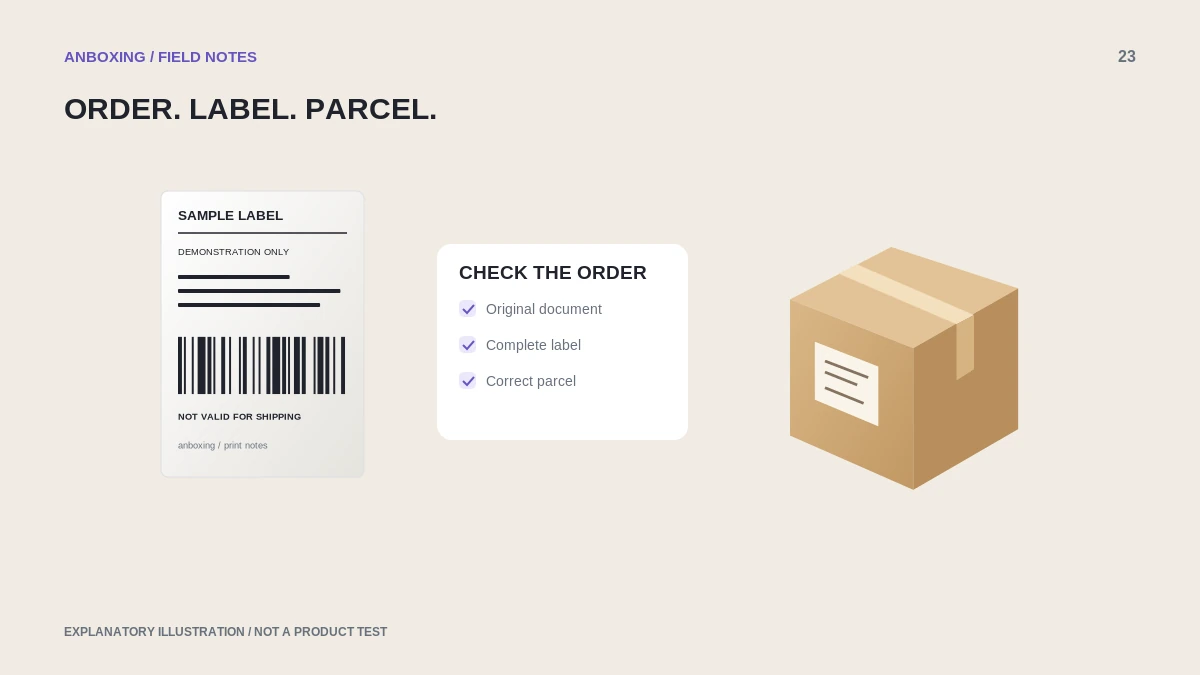
Confirm the shipment before printing
Verify the order, recipient, package measurements, service, and any applicable shipment options in your seller account. Do not copy values from a different parcel just to get through the printing screen. Purchasing postage and producing a paper copy are separate actions.
eBay’s current help describes choosing a label print format, including 4 x 6 where offered, and provides separate workflows for reprinting, canceling, and eligible QR-code options. Availability depends on the shipment and service; use the options actually shown for your order.
A one-order printing routine
- Open the correct order in your eBay selling workflow.
- Review shipment details before purchasing a label.
- Choose the supported 4 x 6 or appropriate label-printer format when available.
- Save or open the original document, not a screenshot of the order screen.
- Select the verified printer and actual stock dimensions.
- Review page count, copies, orientation, scale, and every edge of the preview.
- Print one label, compare it to the order, and attach only the correct version.
If the label comes out small or sideways
Look at the source page first. A larger sheet with the label in one area should be corrected through the supported document format, not enlarged until parts disappear. If the original is correctly sized, compare your application’s media and rotation settings.
| Problem | Next guide |
|---|---|
| Tiny label surrounded by white space | The size-first diagnostic method |
| Sideways or rotated output | Fix source format and rotation |
| Good label plus a blank | Check document pages and job length |
| No output at all | Verify the connection and queue |
Reprinting is not a second shipment
When a print fails, identify whether you are reprinting the existing label or buying a new one. Avoid creating duplicate paid labels while trying to repair a printer. If shipment details have changed, follow eBay’s current label-change or cancellation guidance rather than manually altering the printed information.
Keep discarded test copies away from outgoing parcels. A readable duplicate can be accidentally attached to another order. Before sealing a batch, compare each parcel and its label as a pair rather than treating a stack of prints as interchangeable.
Build a dependable batch process
Prove one order first. Then keep a consistent order-to-label sequence, inspect the first few outputs, and pause at any interruption. A jam or lost page can break the relationship between the printed stack and the packing order. Restart from a known point, not from a guess.
Store shipping documents securely and avoid posting customer addresses or tracking details when requesting troubleshooting help. A non-sensitive sample is a better diagnostic reference.
Common questions
Do I need a thermal printer to ship an eBay order?
Not universally. eBay documents other supported print formats and eligible QR-code workflows. Choose what is available for the particular shipment.
Should I buy postage again when a label fails to print?
Not automatically. Check the existing label’s reprint options first and follow the platform’s rules if shipment details need changing.
Sources & scope
Source-based editorial guide. Official documentation checked September 6, 2026. No hands-on product testing is claimed. Interfaces and compatibility can change; use the current instructions for your exact model.
Illustrations explain a workflow or concept and are not evidence of product testing. Read the label-printer editorial policy.