Confirm ChromeOS support for the exact model. A Windows or Mac driver download does not establish Chromebook compatibility.
A Chromebook can be convenient for a small shipping station, but familiar-looking USB and Wi-Fi connections are only part of the requirement. The practical question is whether ChromeOS can send the right document format to this particular printer.
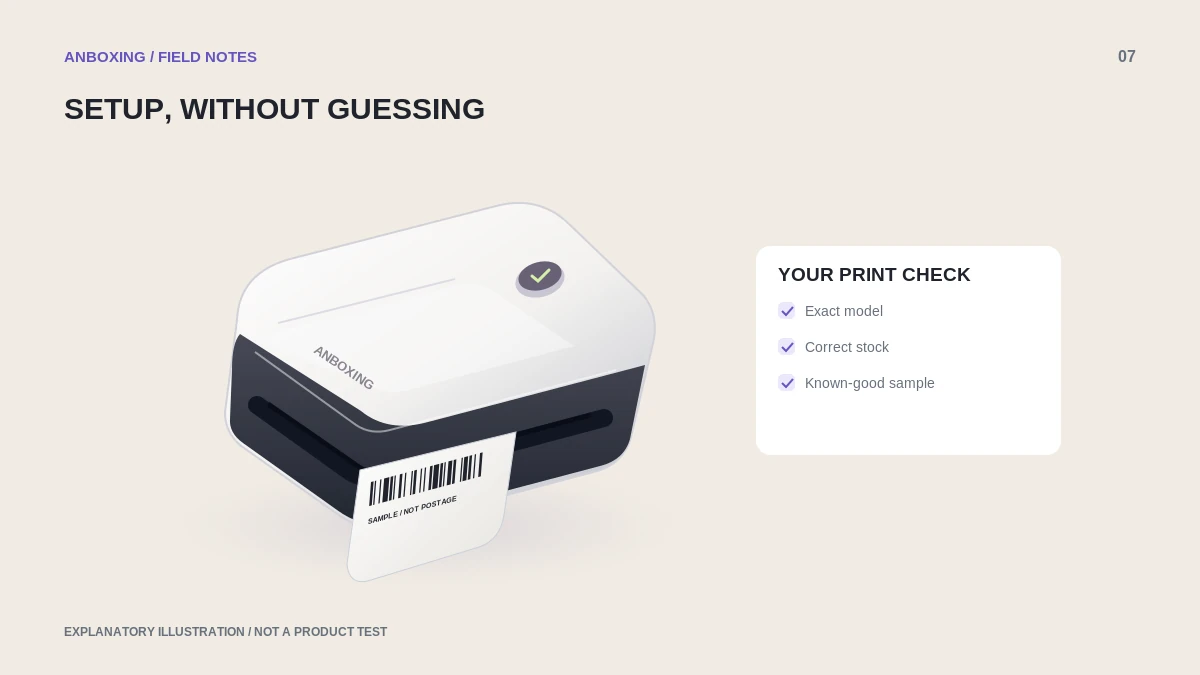
Check the right compatibility claim
Look for the model number, not just a brand logo, in manufacturer ChromeOS instructions. Separate native ChromeOS printing from an optional Android app route; availability of Android apps on a Chromebook does not guarantee that a particular printer app or its Bluetooth workflow will work.
Google describes supported USB and network printers and currently states that Chromebooks do not support Bluetooth printing in their native printing workflow. Treat an undocumented Bluetooth-only purchase as a compatibility risk.
Google: set up a Chromebook printer
Connect without guessing at a driver
- For a supported network printer, connect it and the Chromebook to the network specified by the manufacturer. A guest network may not allow devices to find one another.
- For a supported USB printer, use the documented cable connection and follow ChromeOS notifications. Do not download a Windows installer and expect it to run on ChromeOS.
- Open ChromeOS printer settings and save the detected printer. If manual setup is necessary, obtain the actual address, protocol, queue, or PPD from model-specific instructions.
- Open a downloaded thermal-label PDF and press Ctrl+P. Select the saved printer rather than the Save as PDF destination.
- Check paper size, orientation, one copy, and one page. Inspect both the first print and a later page from a short test batch.
Read the result
| Result | Next action |
|---|---|
| Printer cannot be saved | Recheck supported model and documented manual setup. |
| Printer saves but never responds | Check network access or the actual USB route. |
| Prints successfully but label is too small | Investigate PDF page size and print scaling. |
| Works on a personal Chromebook but not a work device | Ask the administrator about managed printing restrictions. |
Avoid trying a series of random printer languages or generic drivers. A printer can be detected without understanding the data sent to it.
Decide before the return window closes
Test the real shipping platform, not just a generic page, while the equipment is returnable. Check whether you can select the needed label size and whether several distinct labels print in the correct order. Keep a known-good PDF for future troubleshooting.
When the manufacturer does not support your model on ChromeOS, a documented desktop or mobile route is preferable to an improvised chain of extensions. Browser access to a shipping website and hardware support for its printed labels are separate questions.
Common questions
Can I install the Windows printer driver on ChromeOS?
Not as a native ChromeOS printer driver. Use the printer’s documented ChromeOS setup instead.
Does a Chromebook need Bluetooth for labels?
No. Compatible USB or network printers may be appropriate. Verify the model before buying.
Sources & scope
Source-based editorial guide. Primary references checked September 9, 2026. Diagnostic sequences and comparisons are editorial guidance, not results of hands-on product tests. Confirm current instructions and compatibility for your exact model.