Choose stock that the printer can detect, not just stock that fits through the opening. Gap and black-mark sensing are different ways to locate label boundaries.
When a printer keeps feeding or the print position drifts, the label size is only part of the question. The printer also needs a supported way to recognize where one label ends and the next begins.
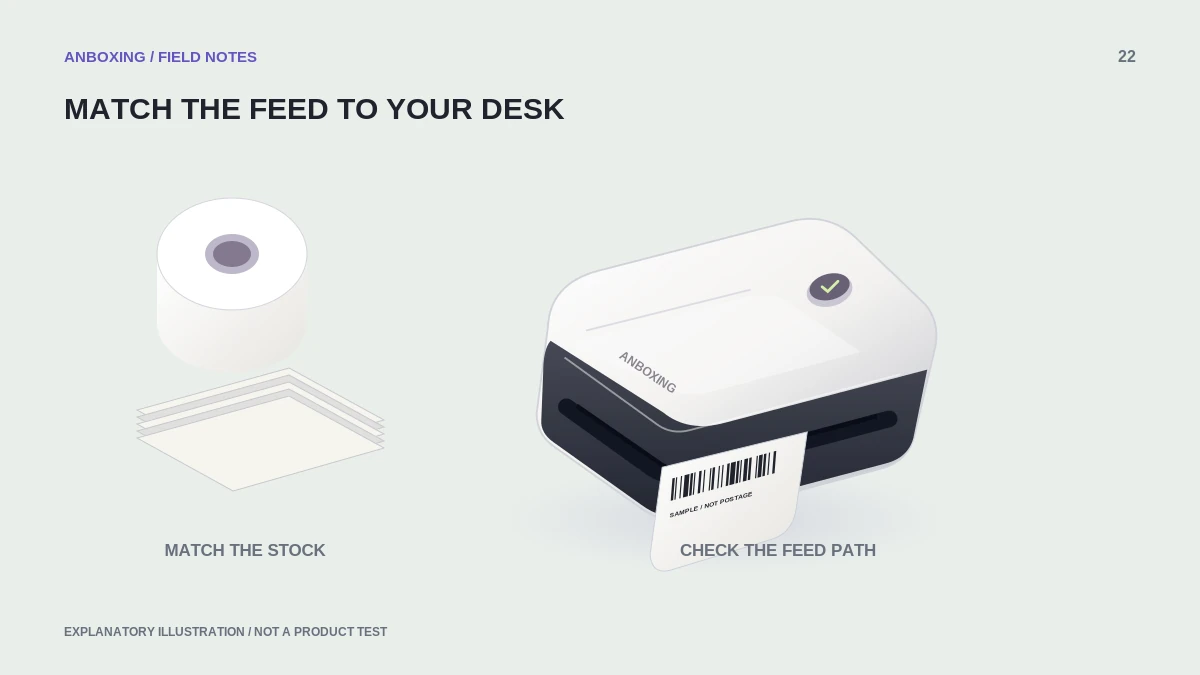
Identify the stock construction
| Stock type | What to inspect |
|---|---|
| Gap or die-cut stock | The separation between individual labels on the liner. |
| Black-mark stock | The mark location, side of the liner, and required sensing specifications. |
| Continuous stock | Whether the printer and workflow support length control without individual gaps. |
Look at the actual roll or stack rather than relying on a generic listing image. Note any perforations, preprinted marks, and liner features. Ask the supplier when the product description does not identify the sensing method.
Match sensing support to the exact model
Zebra’s calibration guidance for its ZQ500 and QLn families illustrates why sensing and calibration instructions are model-specific. Use the support document for your own printer; a calibration sequence from a different family is not a safe universal shortcut.
Zebra: calibration for ZQ500 and QLn mobile printers
- Find the printer’s supported media types and sensor arrangement in its own guide.
- Compare the stock’s gap or mark specification with those requirements.
- Where the driver or printer exposes a media-type setting, select the one that matches the stock.
- Load the media with the required side and mark orientation. Adjust only the guides or sensors the manual identifies as user-adjustable.
- Run the documented learning or calibration routine.
- Feed and print a short sequence of labels, checking both position and consistency.
Diagnose a mismatch without wasting a roll
If you have known-compatible stock, test it first with the normal settings. If it feeds correctly and the new stock does not, compare material specifications before reinstalling software. This does not prove the new material is defective; it may simply use an unsupported sensing arrangement.
Also check the document page length. Correct media detection and a mismatched PDF can create a confusing combination: the printer finds the next label, while the application still sends a job sized for something else.
Questions to ask before buying
Give the supplier the full printer model and ask for the sensing type, label dimensions, liner width, and any required mark placement. Confirm whether a sample can be tested before committing to a large roll order. The phrase compatible with thermal printers is too broad to answer those questions.
Do not draw your own registration marks on shipping stock as a general fix, and do not tape over sensors to force continuous feeding. Use supported media and the manufacturer’s configuration so the result remains repeatable.
Common questions
Will any label with a black mark work?
No. The printer must support that sensing method and the stock must meet its specifications.
Can calibration fix unsupported stock?
Calibration cannot add a sensing capability the printer does not have.
Sources & scope
Source-based editorial guide. Primary references checked September 9, 2026. Diagnostic sequences and comparisons are editorial guidance, not results of hands-on product tests. Confirm current instructions and compatibility for your exact model.