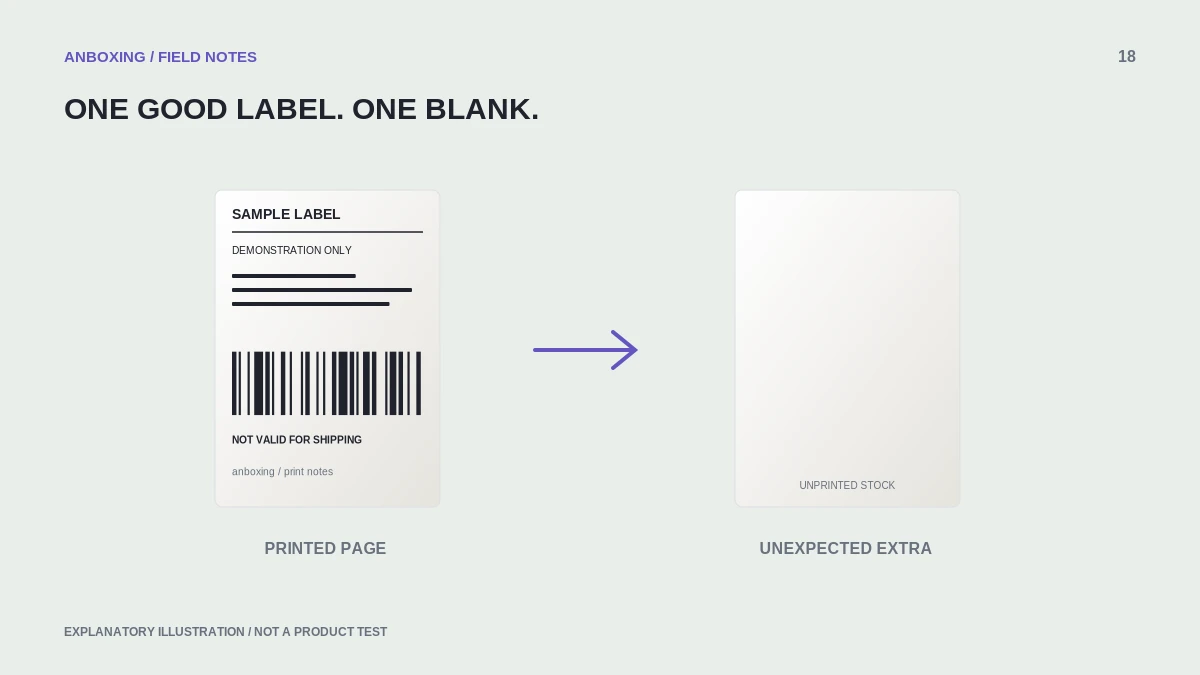
Check copies, source pages, and queued jobs first. Identical printed content is a different problem from a correctly printed label followed by blank stock.
Two labels coming out is not enough information to diagnose the printer. Compare what is printed on them: a repeated address points toward copies or job handling, while a second empty label points toward document length or media detection.
Identify the exact repeat pattern
| Pattern | First place to look |
|---|---|
| Every page prints twice | Copy count in the application and driver. |
| The entire batch repeats | Repeated submissions or an older queued batch. |
| Only one address repeats | Duplicate source pages or order selection. |
| Printed label followed by a blank | Page dimensions, extra PDF pages, or media detection. |
Keep an example pair beside the source PDF. Compare the address and shipment identifier rather than judging by the label layout alone. Two different orders can have very similar-looking labels.
Run a controlled one-page test
- Stop all new print submissions. Let the active job finish or cancel it through the normal queue controls.
- Open the actual PDF you sent. Count the pages and check for a repeated label inside the file.
- Select one known page, set copies to one, and disable any intentional repeat feature in the printing app.
- Check the printer queue for another pending version of the same job. Cancel only the jobs you intend to stop.
- Print once and wait for that job to complete before deciding whether it failed.
- If it duplicates again, try the same single-page file in another supported viewer. Record which route produced the repeat.
Separate file duplicates from queue duplicates
Adobe provides controls for selecting pages and the number of copies. Microsoft documents canceling queued jobs when they do not clear normally. These controls are more relevant to repeated content than media calibration.
Adobe: printing PDFs in Acrobat Reader Microsoft: resolve jobs stuck in a print queue
If the PDF already contains the same label twice, fix the selected pages or regenerate the batch. If the source contains one page but two separate jobs appear in the queue, investigate repeated clicks, browser dialogs, or application retries. A physical printer reset will not remove duplicate pages from a saved document.
Resume without mixing up parcels
Place unexpected duplicates in a separate discard pile and protect the customer information on them. Reconcile the remaining unique labels against the order list before applying anything to packages. Do not use a duplicate shipment label for a second unrelated parcel.
For future batches, send one job from one application window and wait for a visible result. Keep a simple record of the last completed order so a connection interruption does not require reprinting everything. When reporting a problem, include the file page count, copies setting, and number of queue entries; those three facts sharply narrow the diagnosis.
Common questions
Will calibration stop identical duplicate labels?
Usually that is not the first thing to test. Check the document, copy count, and queue before media settings.
What if the second label is blank?
Use the extra-blank-label guide instead; the diagnostic path is different.
Sources & scope
Source-based editorial guide. Primary references checked September 9, 2026. Diagnostic sequences and comparisons are editorial guidance, not results of hands-on product tests. Confirm current instructions and compatibility for your exact model.