Inspect the pages, print a small sample, and keep the label sequence tied to an order list. A single PDF can contain more than one kind of document.
Batch printing saves repeated clicks, but it also concentrates mistakes. One wrong copy count or a letter-size page mixed into the file can produce a pile that is difficult to reconcile with waiting parcels.
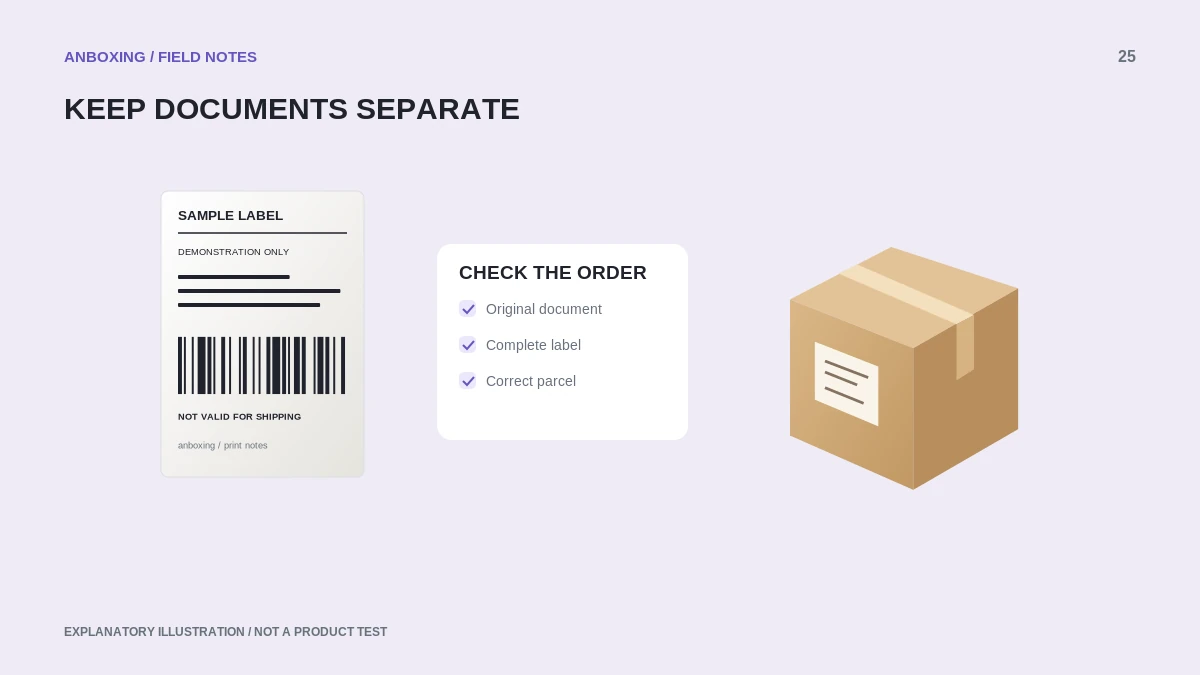
Audit the file before printing
- Count the PDF pages and compare the number with the selected orders. Some orders or services can require additional documents, so do not assume one page always equals one parcel.
- Inspect the beginning, middle, and end of the file. Look for packing slips, instructions, customs documents, or blank pages.
- Check page dimensions, particularly when orders came from different sources. Separate documents that require another paper format.
- Confirm that each selected shipping label belongs to the intended order and shipment.
- Choose one copy of the required page range in the supported PDF viewer.
Adobe: printing PDFs in Acrobat Reader
Test a short range first
Print a few distinct labels, not repeated copies of one page. Compare their order with the PDF and inspect edges, address lines, and barcode areas. A printer can handle the first page correctly while a later differently sized page causes trouble.
Use a consistent input and output path for the labels. Keep finished labels from curling back into the printer or mixing with discarded tests. The arrangement should make it obvious which label comes next.
Keep the parcel match visible
| Stage | Simple control |
|---|---|
| Before printing | An order list that matches the selected file. |
| At the printer | Separate good labels from partial or test output. |
| At application | Compare the order identifier and destination before attaching. |
| After interruption | Record the last verified complete label, not just a page estimate. |
A quick barcode scan may be useful in a supported fulfillment workflow, but it does not replace checking that the correct shipment is attached to the correct parcel.
Recover an interrupted batch
Stop sending replacement batches. Check and cancel outstanding queue work as appropriate, then reconcile the labels that actually printed. Only send the remaining required pages once the queue state is clear.
Microsoft: resolve jobs stuck in a print queue
Watch for old jobs resuming when the printer reconnects. Keep unexpected duplicates aside rather than putting them straight into the packing sequence. If the same source page repeatedly stops the batch, print that page alone and compare it with a known-good document.
For a busy station, write down the chosen PDF viewer, paper setting, copy count, and order of operations. The best batch setup is one another person can repeat without guessing, not simply the one with the fewest clicks.
Common questions
Should I select several copies for several orders?
Usually distinct orders are separate pages. Copies repeat the selected pages; inspect the file and use the needed page range.
Can I print packing slips in the same thermal batch?
Only when the workflow intentionally formats them for that stock. Otherwise separate them by required paper size and purpose.
Sources & scope
Source-based editorial guide. Primary references checked September 9, 2026. Diagnostic sequences and comparisons are editorial guidance, not results of hands-on product tests. Confirm current instructions and compatibility for your exact model.