Stop sending more jobs. Check the selected queue, cancel the stalled work, and test a single known-good label before releasing another batch.
A stuck queue can turn into a pile of duplicate shipping labels when several attempts finally print together. Recover the job list and the parcel list as separate tasks so you know which labels are still needed.
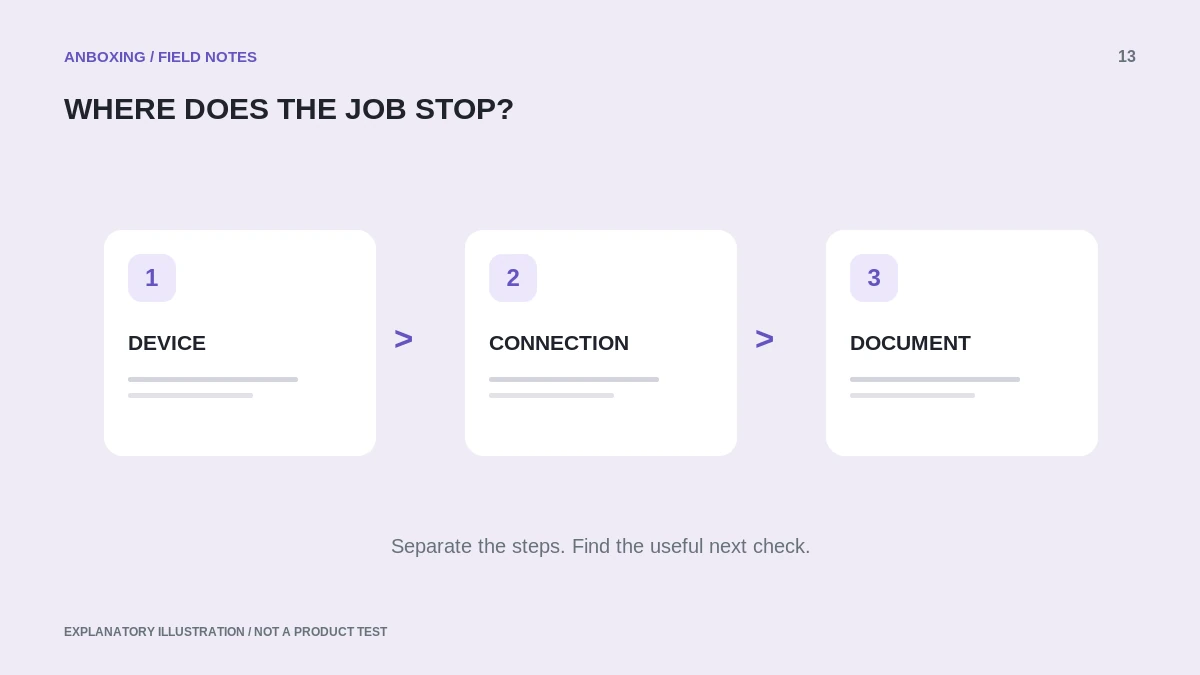
Pause the order workflow first
Stop clicking Print in the marketplace and close any extra print dialogs. Note which orders have already produced usable labels. Keep uncertain parcels aside rather than assuming that a job marked completed means the correct label reached the correct package.
Confirm the printer is powered, has supported stock loaded, and is not reporting an open cover or jam. A computer queue cannot fix a physical paper problem. If the device has a documented self-test, its result helps separate the printer from the computer.
Clear the queue through Windows
Microsoft’s Windows 11 guidance starts with Settings > Bluetooth & devices > Printers & scanners, selecting the printer, and opening its print queue. Cancel the jobs there. If they remain stuck, Microsoft describes restarting the Print Spooler service as a later step.
Microsoft: resolve jobs stuck in a print queue
- Select the correct label-printer queue. Similar names and old duplicate queues can make a working printer look unresponsive.
- Cancel the stalled jobs and wait for the queue to update. Do not keep sending replacements while cancellation is pending.
- When cancellation fails, an authorized user can restart Print Spooler through Services. This can affect other printers on the same computer, so coordinate on a shared workstation.
- Check the queue again before reconnecting or restarting the printer.
- Send one saved test label with one copy selected. Inspect the output before resuming real orders.
Do not begin by deleting system folders
Microsoft also documents manually clearing spool files, but that is an advanced recovery step, not a routine first action for a shipping station. Use its current instructions only when simpler cancellation fails and you understand the effect on queued work. Do not delete an entire system folder or run an unknown cleanup script.
For a managed office computer, ask the administrator to handle service-level changes. Record the error message and queue name; a screenshot of the list can help without exposing customer addresses.
Reconcile the batch after recovery
| After the test | What to do |
|---|---|
| Exactly one test label prints | Proceed with one unprinted order. |
| Older labels also emerge | Stop and compare them with the outstanding-order list. |
| Nothing prints but the queue empties | Recheck the target queue, connection, and printer state. |
| The same file stalls again | Try a known-good original PDF and compare document properties. |
A reprinted label is not automatically a newly purchased shipment. Check the shipping platform’s transaction history separately, and avoid putting the same shipment identifier on two different parcels.
Common questions
Will restarting Print Spooler only affect this printer?
It can affect other printing work on the computer. Coordinate with other users first.
Should I buy another shipping label when printing fails?
Not merely to test the printer. Check the existing shipment and reprint options in your platform before making another purchase.
Sources & scope
Source-based editorial guide. Primary references checked September 9, 2026. Diagnostic sequences and comparisons are editorial guidance, not results of hands-on product tests. Confirm current instructions and compatibility for your exact model.