Check the preview and source-page dimensions before rotating the printer output. A full office page containing a sideways label needs a different correction from a correctly sized label rotated once.
Turning a page until it appears upright can hide the real issue: the printer may still be shrinking an entire office document onto a small label. Rollo’s updated sideways-print guidance emphasizes fixing the source format before adjusting rotation. [Source]
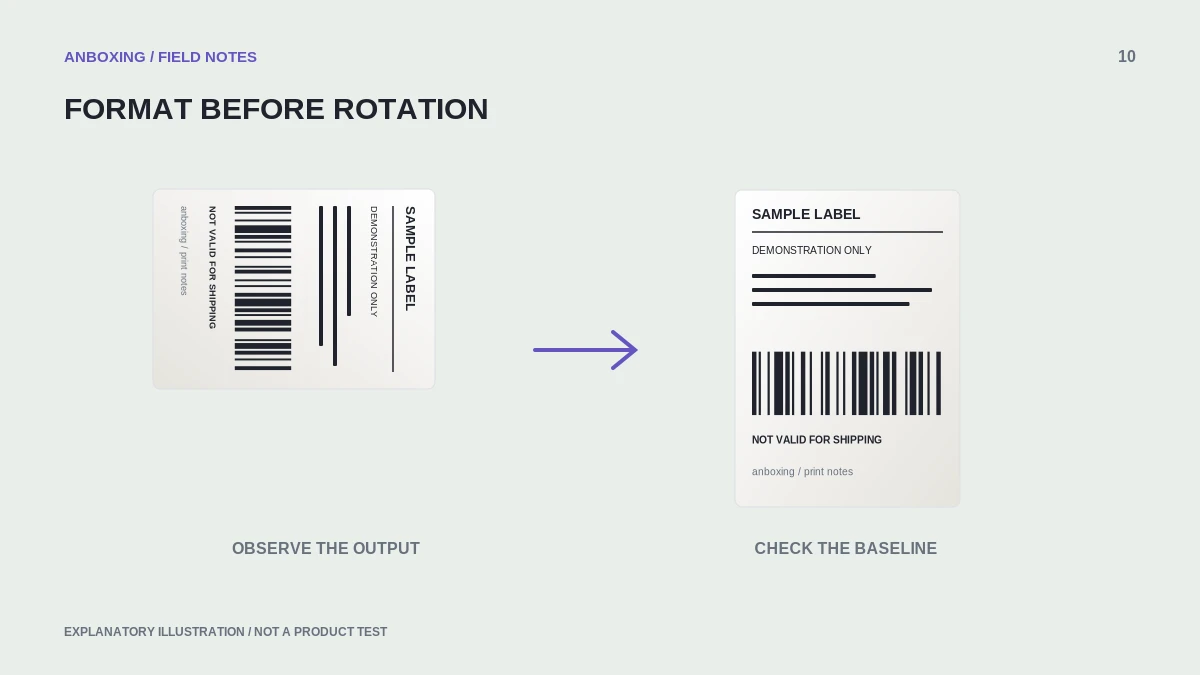
Identify which of three cases you have
| Preview | What it suggests |
|---|---|
| A small label inside a large white office page | The source is not a native label-sized document. |
| A label fills the page but is rotated | Check one rotation or orientation setting. |
| Content is upright but edges are cut off | Check media dimensions, scale, and printable area. |
Keep a copy of the original file before editing. It is your reference for the complete barcode, address, and service markings. Never compare a cropped copy only with another cropped copy.
Correct the document at the platform
Look for the platform’s label-printer or 4 x 6 document option when that format is supported for the shipment. Download the new document and inspect its page dimensions. Selecting a small paper size only at the final print dialog does not change how the original document was laid out.
- Open the original shipping document and check its page count and dimensions.
- Generate the supported label-sized format at the shipping platform.
- Select media dimensions that match your physical stock.
- Inspect the whole preview before choosing any rotation.
- Apply rotation in one place only and print one test.
Avoid double rotation
A source PDF, application, driver, and printer app may each offer orientation controls. When more than one layer rotates the file, you can end up correcting one setting and undoing it at another. Reset only the relevant settings you recorded, then test a single change.
An easy comparison is to print the same known-good sample from two applications without editing it. If one result is correct, the difference is evidence to investigate in the other application’s print options, not proof that the printer is broken.
When cropping is unavoidable
Prefer a platform-generated label format. If the platform only supplies a larger sheet, use its or the printer manufacturer’s documented extraction method. Keep all required information and the space surrounding barcodes. Do not redraw, stretch, or remove shipping elements simply to make the design fit.
After any extraction, compare the result against the original at a readable zoom level. Check every edge. A label that looks tidy but omits a routing code is not a successful fix.
A final one-label check
Before resuming a batch, confirm the recipient, service, barcode, and all margins on one printed label. Save the successful source-format and print settings together. Mark obsolete presets clearly so the same sideways document does not return the next time you switch applications.
Common questions
Should every shipping label use portrait orientation?
No universal print-dialog label guarantees the right result. The source orientation, media dimensions, and application behavior must agree.
Can I stretch a label to fill the stock?
Do not distort shipping barcodes or required information. Use the supported document format and preserve proportions; investigate missing or oversized margins instead.
Sources & scope
Source-based editorial guide. Official documentation checked September 6, 2026. No hands-on product testing is claimed. Interfaces and compatibility can change; use the current instructions for your exact model.
Illustrations explain a workflow or concept and are not evidence of product testing. Read the label-printer editorial policy.