If every label is blank, check compatible media and loading first. Then compare the printer’s own documented test with a computer-sent sample to separate hardware and file problems.
This page is for a label that advances without a visible image. If a good label prints and an extra blank one follows, use the separate extra-blank-label guide: that is a different symptom. Begin with one controlled test rather than sending the order repeatedly.
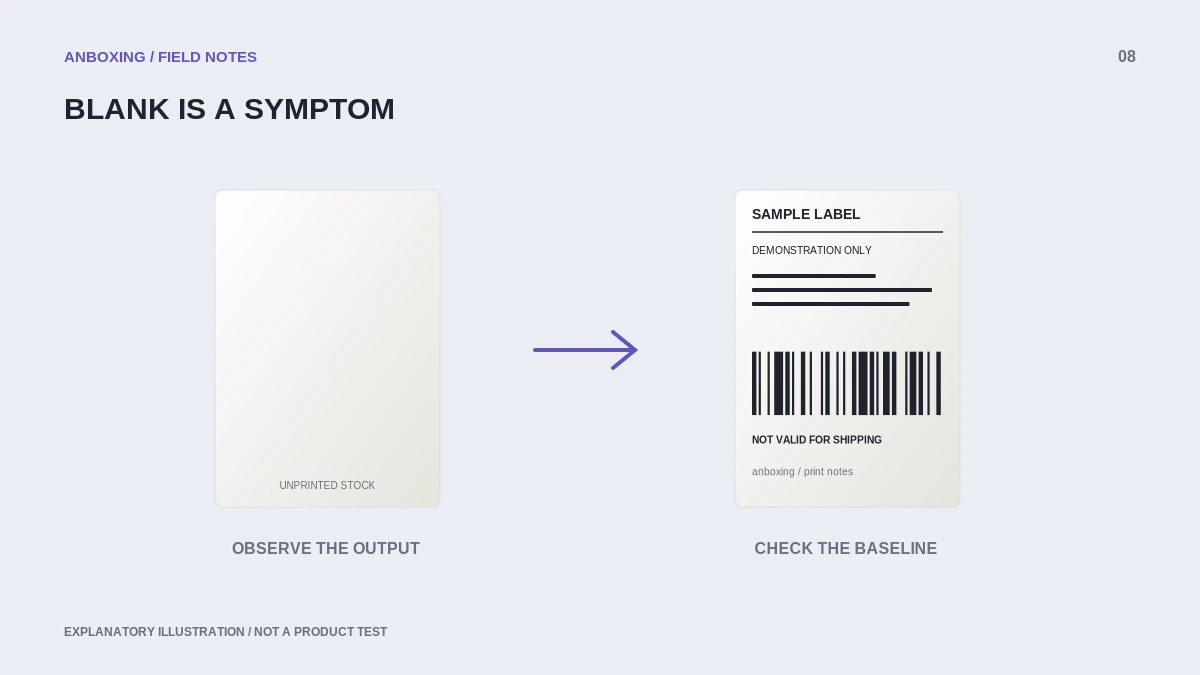
Make sure you are solving the right symptom
| What comes out | Use this starting point |
|---|---|
| Every label is completely blank | Media type, printable face, and the model’s internal test. |
| A normal label followed by a blank | Document pages, job length, and media detection. |
| Very pale text is visible | The faded-print guide and a known-good sample. |
| Only one document is blank | Document rendering, selected pages, and source file. |
Cancel queued copies before touching the media. Save the original document so you can retry the same file after each change. This makes the comparison meaningful and avoids printing stale jobs unexpectedly.
Check the stock and loading direction
Rollo’s blank-label guidance specifically calls out the printable face and direct-thermal stock. Use your own model’s loading diagram; the correct orientation depends on the printer’s path. A roll that physically fits is not enough to establish compatibility.
Read the supplier packaging. Do not substitute ordinary adhesive paper or thermal-transfer stock in a direct-thermal-only printer. Keep one known-supported sample pack for troubleshooting. Changing both the label supplier and print settings at once makes the result harder to interpret.
Separate the printer from the sending device
- Use the exact model’s documented internal test or self-test procedure. Do not use an arbitrary button-hold duration from another printer.
- Inspect whether that test leaves a clear image on the label.
- If the internal test is blank, revisit media and loading, then contact support if supported stock still fails.
- If the internal test is good, send an official sample document from the computer or app.
- If that sample is good too, compare the original document, selected page range, and print preview.
What each test proves
A successful internal test shows that the printer can mark that stock under the test conditions. It does not prove the computer is selecting the right queue. A successful computer-sent sample tests more of the workflow, but it still does not prove that a different shipping document is correctly formatted.
Our recommended troubleshooting record is simple: test name, file used, label stock, setting changed, and result. Change one variable at a time. When a change works, repeat the successful test once before returning to customer orders.
When to stop
Stop using the printer if you see smoke, melted material, exposed wiring, or damage. Do not open the power supply or dismantle the printhead assembly. If the documented self-test remains blank with correctly loaded, supported stock, send those results to the manufacturer rather than escalating heat settings indefinitely.
Common questions
Do blank labels mean the printer is out of ink?
A direct-thermal printer does not use an ink cartridge. Blank output needs a media, loading, test, or hardware check instead.
Should I immediately increase darkness?
Not for a completely blank internal test. First prove the material and loading are correct; excessive heat is not a substitute for compatible media.
Sources & scope
Source-based editorial guide. Official documentation checked September 6, 2026. No hands-on product testing is claimed. Interfaces and compatibility can change; use the current instructions for your exact model.
Illustrations explain a workflow or concept and are not evidence of product testing. Read the label-printer editorial policy.