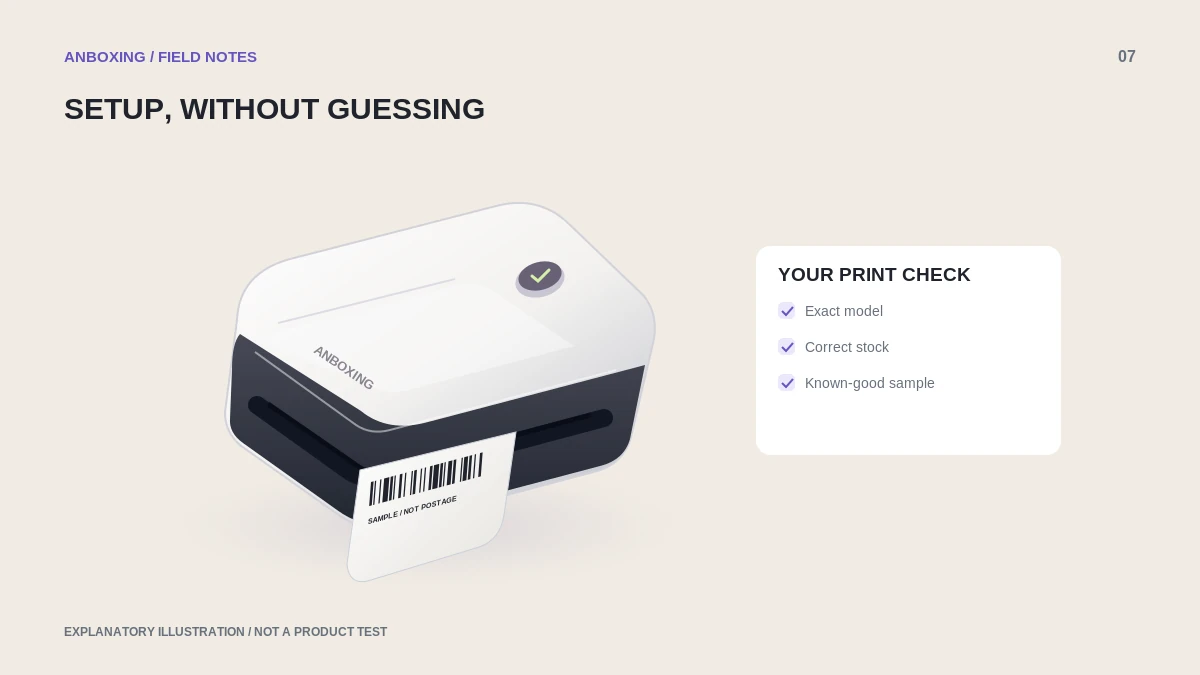
Check the model, Windows version, and processor architecture. Follow the supported installer, verify the active printer queue, and print a sample before testing an order.
Windows can detect many printers automatically, but detection does not settle every label-printer setting. A working setup also needs a supported connection, the correct queue, and a document format that matches the stock. This guide focuses on Windows 11; follow current vendor guidance for other versions.
Verify the computer and driver combination
Microsoft’s current guidance covers both automatic installation and manufacturer software. It also flags differences on ARM-based PCs. Check System type in your device information and compare it to the printer maker’s compatibility notes before assuming a desktop installer will work.
Download drivers from the manufacturer’s official support page or supported Windows mechanism. A search result saying driver download is not evidence that the file is from the printer maker. Keep a note of the installed version for future troubleshooting.
Install and test in a controlled order
- Record the exact printer model and planned connection: USB, supported Bluetooth, or network.
- Follow the model’s installation sequence, connecting the device when instructed.
- Open Settings, then Bluetooth & devices, then Printers & scanners to inspect the installed entry.
- Confirm the selected printer inside your PDF viewer or shipping application.
- Choose the stock’s actual dimensions, review the preview, and print a manufacturer sample.
- Print one original shipping file using the same verified queue.
- Save a clearly named preset only after the complete label prints correctly.
Understand duplicate-looking queues
You may have separate entries for a USB connection, a network connection, or an older installation. Do not rely on the first familiar name. Check which queue receives your test and which connection it represents. Rename a verified queue so its purpose is obvious.
For a shared work area, document which queue each application should use. This reduces the chance that a packing slip goes to the thermal printer or that a shipping label goes to an office printer with an incompatible paper preset.
When a job stays in the queue
Stop sending more copies. Record the job status, check the device’s power and error state, and confirm the intended connection. Use Microsoft’s printer troubleshooter and the manufacturer’s model-specific advice. Do not delete system spool folders or disable security software as a casual first step.
| Observation | Useful next comparison |
|---|---|
| No application can print | Known-good sample through the verified queue. |
| One application fails | Its destination and paper settings versus another app. |
| USB works but Bluetooth does not | Connection-specific driver and architecture support. |
| Print is complete but too small | Document dimensions rather than connection setup. |
Common questions
Does Windows 11 support every thermal printer automatically?
No universal guarantee applies. Check the exact printer’s operating-system and processor support, even when Windows detects a device.
Is a driver updater required?
Use official manufacturer or supported Windows driver sources. A third-party driver-updater subscription is not a prerequisite for this setup workflow.
Sources & scope
Source-based editorial guide. Official documentation checked September 6, 2026. No hands-on product testing is claimed. Interfaces and compatibility can change; use the current instructions for your exact model.
- Microsoft: add or install a printer
- Microsoft: current printer drivers
- Microsoft: offline printer troubleshooting
Illustrations explain a workflow or concept and are not evidence of product testing. Read the label-printer editorial policy.