Use AirPrint only when the exact model supports it. Otherwise install the manufacturer’s compatible software, add the correct printer, and verify a label-sized sample.
Mac setup is not one universal driver recipe. Some printers use AirPrint; others depend on model-specific software. Start by identifying which path the manufacturer supports on your macOS version, then test the connection independently of your marketplace.
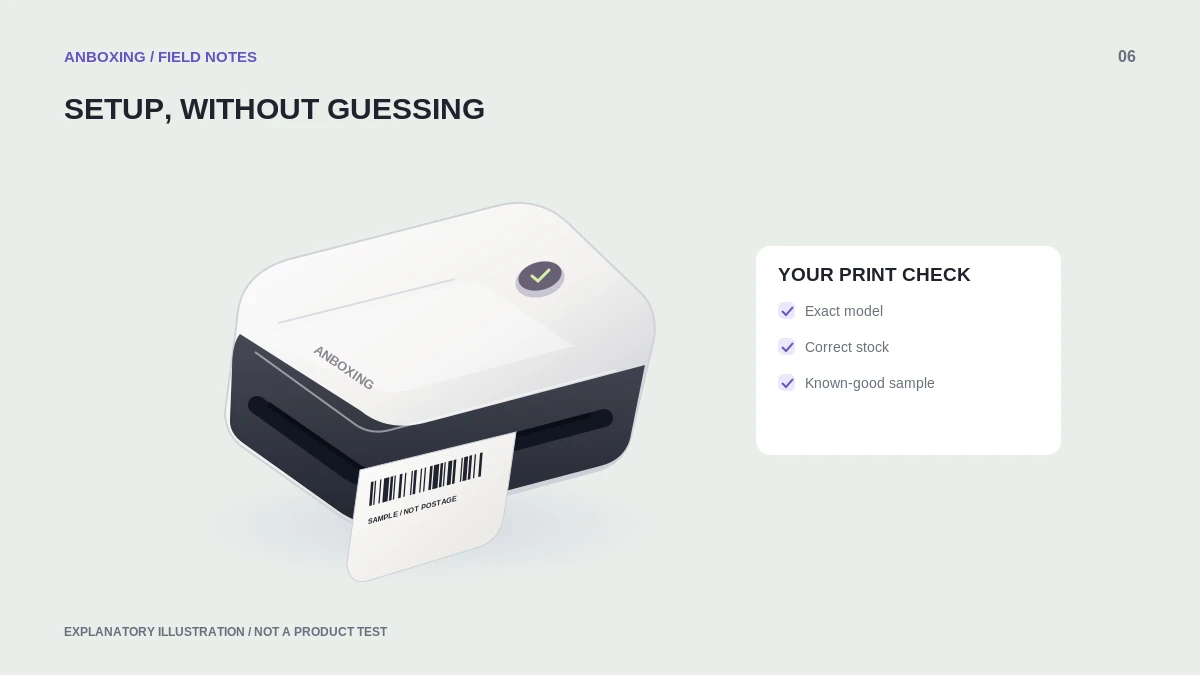
Choose the supported printing method
Apple’s printer setup guidance distinguishes AirPrint from printers that need manufacturer software. Add the printer through Printers & Scanners, and verify that the selected software or protocol is appropriate for the model.
Do not choose a generic driver solely because it allows the printer to appear in a list. A queue that accepts jobs but does not expose the needed media options is not a completed setup. Check the model’s documentation before using an alternative protocol.
Connect without introducing extra variables
- Confirm your macOS version and exact printer model. Download only the software that the manufacturer says supports that combination.
- For USB, use a supported data connection and a suitable adapter where needed. Start without a multi-device dock when practical.
- For a network printer, finish its network setup and confirm the Mac is on the intended local network.
- Add the printer and give the verified queue a descriptive name.
- Open a manufacturer sample in a supported application and choose the physical label size.
- Print a single test, then test an original shipping document.
Save a size-specific preset
Before saving a preset, inspect the document itself. A preset cannot reliably correct a source page that mixes a label with a packing slip. Name presets by dimensions and purpose so that a later small product-label job does not silently inherit shipping settings.
When switching applications, recheck the destination and paper size. The last successful selection in one app does not prove another app is sending the same settings. Treat custom page size, scale, orientation, and copies as a group you verify together.
Diagnose by where the failure starts
| Failure | Next test |
|---|---|
| Mac does not list the printer | Verify connection and the model’s supported installation. |
| Queue receives jobs but printer does not move | Check selected queue, device state, and connection. |
| Sample prints but order does not fit | Inspect the order document’s format and scaling. |
| Only one app produces a wrong result | Compare its print options with the application that succeeds. |
Avoid resetting the entire Mac printing system as an opening move. That is a broader action than checking one queue and can affect other installed printers. Record existing settings before any larger change.
Keep a useful support record
A short record should include the Mac model, macOS version, printer model, software version, connection path, and the result of the sample print. Include a redacted screenshot of the preview and a photo of a non-sensitive test label. Do not share customer addresses or network passwords.
Common questions
Does every wireless label printer support AirPrint on Mac?
No. Wireless describes a connection category, not a guarantee of AirPrint support. Confirm the exact model’s protocol and software requirements.
Why does the same file print differently from two apps?
Applications can apply different paper sizes, scaling, and rotation. Compare those settings before replacing the driver or printer.
Sources & scope
Source-based editorial guide. Official documentation checked September 6, 2026. No hands-on product testing is claimed. Interfaces and compatibility can change; use the current instructions for your exact model.
Illustrations explain a workflow or concept and are not evidence of product testing. Read the label-printer editorial policy.