Treat wireless setup as two checkpoints: the printer joins the network, then your device discovers it. A connected printer still needs the correct document and media settings.
A wireless printer can appear ready on its own indicator while remaining invisible to the phone or laptop sending the job. Instead of reinstalling everything, separate network setup from discovery and the final print test. Use the official Wireless instructions for your exact model. [Source]
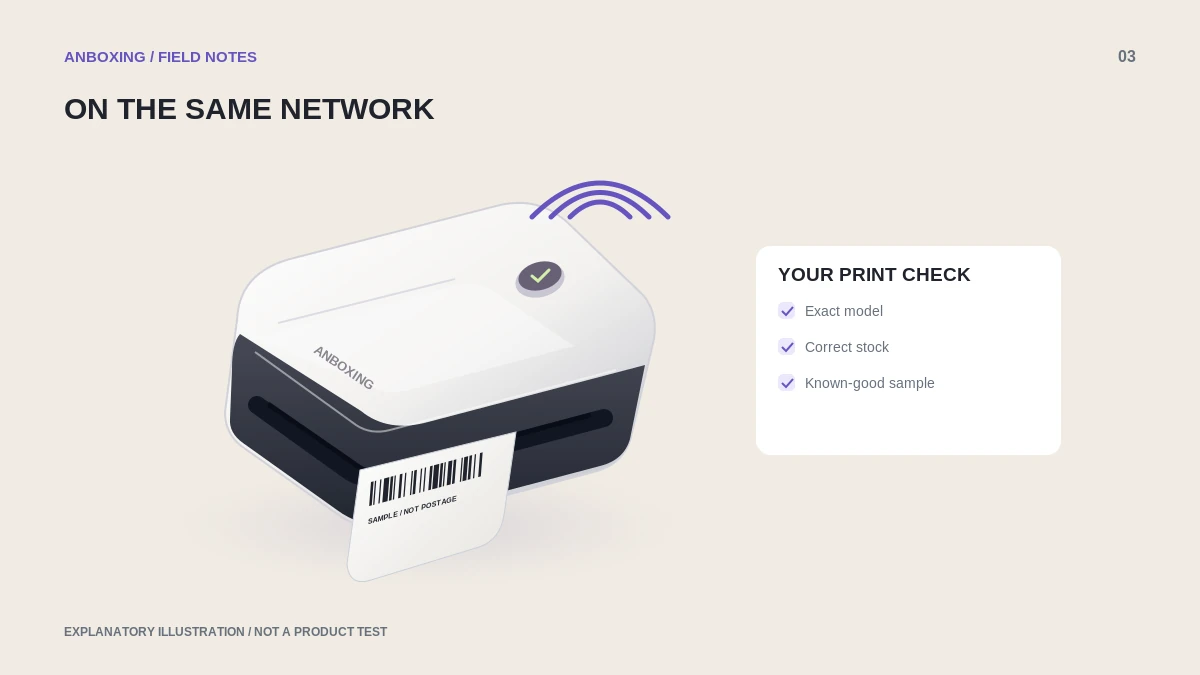
Prepare the network, not just the printer
Have the network name and password ready, but do not include either in screenshots sent for support. Start with the printing device and printer on the intended local network. On a managed or guest network, ask the administrator whether devices are allowed to discover one another; do not turn off network security to make a printer appear.
Record whether the problem is joining the network, finding the printer, or sending a document. Those are different failures. A setup flow that completes successfully does not tell you whether your shipping app supports the printing method you selected.
Connect using the supported setup flow
- Identify the Wireless model and open its current official setup guide. Follow the supported app or documented computer-based path.
- Load compatible labels before test printing. The network can work perfectly even when the wrong stock prevents a usable result.
- Complete the network setup and confirm the model’s documented connected state.
- From the intended phone or computer, look for the printer through the supported print flow.
- Print one manufacturer sample, then one label from your actual shipping service.
- Save the successful workflow, including the application and paper size, so another device can reproduce it.
When you do not have a phone available
Rollo provides a separate computer-based setup procedure. Use that page rather than inventing a reset or network address. The procedure includes a temporary setup network; follow the manufacturer’s instructions and return your computer to its normal connection afterward.
Do not factory-reset a shared printer as your first troubleshooting action. A reset may remove working settings for everyone else. Save the existing setup details and check the official recovery instructions before making that change.
A useful discovery test
| Observation | Next check |
|---|---|
| Neither laptop nor phone finds it | Confirm setup completion and local-network access. |
| Phone finds it, laptop does not | Check the laptop’s network, supported discovery method, and installed queue. |
| Printer is found, but only one file fails | Compare that file with the successful sample. |
| Network restrictions block automatic discovery | Consult the administrator and Rollo’s documented manual-installation route. |
A manually assigned printer address should come from the actual printer or administrator, not an example copied from an article. Document changes so they can be reversed.
Common questions
Does Bluetooth pairing prove my Rollo is ready for network printing?
No. Complete the Wireless model’s documented network setup and verify it through the supported printing flow.
Why can I see the printer but not the right paper size?
Discovery and available media options are separate. Check the printer’s supported setup and application settings; Rollo also documents a manual-installation route for some custom-size problems.
Sources & scope
Source-based editorial guide. Official documentation checked September 6, 2026. No hands-on product testing is claimed. Interfaces and compatibility can change; use the current instructions for your exact model.
- Rollo: wireless first-use setup
- Rollo: wireless setup without a phone
- Rollo: manual wireless installation
Illustrations explain a workflow or concept and are not evidence of product testing. Read the label-printer editorial policy.