Use verified AirPrint support or the manufacturer’s iPad app workflow. The fact that a printer is wireless does not establish either one.
An iPad gives you more room to review orders than a phone, but a larger preview does not guarantee a correctly sized label. Keep the original PDF, connection method, and printer paper size distinct while you set up.
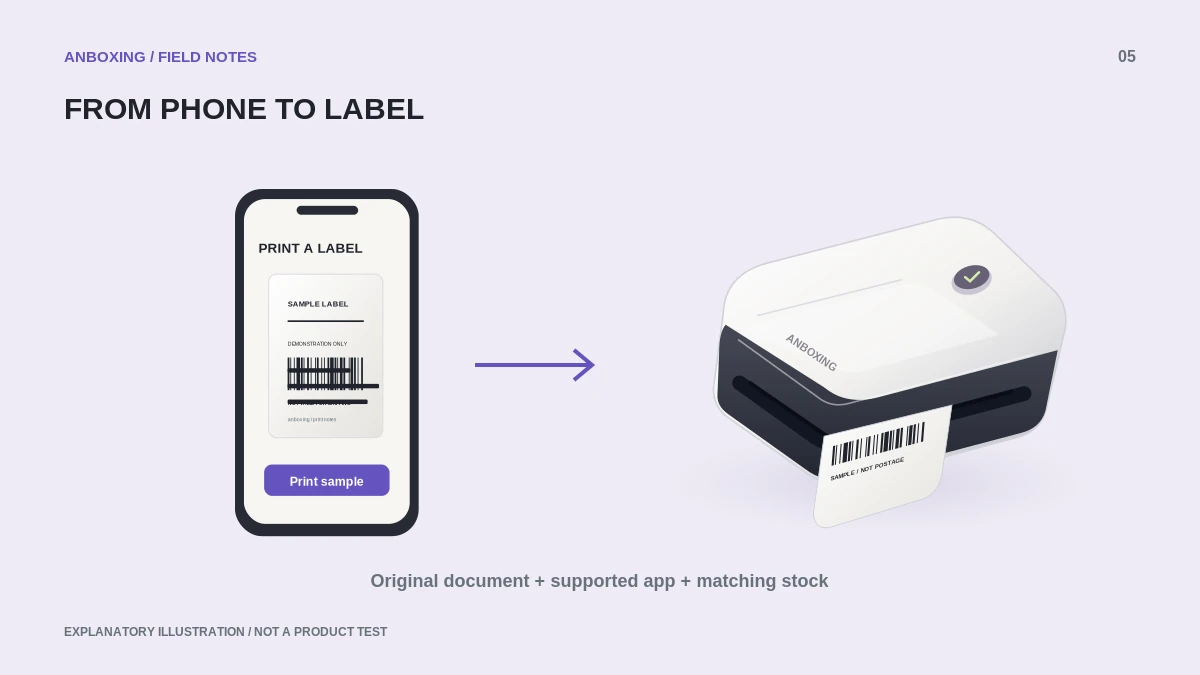
AirPrint and app printing are different routes
Apple requires an AirPrint-enabled printer and a suitable network connection. The iPad and printer need to be on the same Wi-Fi network for the usual discovery workflow. Apple also notes that not every app offers a Print command.
A manufacturer app may support a different connection, including a model-specific Bluetooth route. Follow that app’s instructions; do not expect an app-only printer to appear automatically in the iPad’s AirPrint list.
Apple: AirPrint from iPhone or iPad
Prepare the document before opening Print
- In your shipping platform, choose the supported thermal-label output rather than a full order summary. Save the original PDF to Files.
- Open the file and inspect its page count. Keep packing slips, customs documents, and labels distinct; they may have different required paper sizes.
- For AirPrint, use the app’s Share or Actions menu and select Print. For an app-based printer, import or share the PDF using the manufacturer’s supported method.
- Select the right printer, one page, and one copy. Confirm the available paper options match the loaded stock.
- Compare the printed output with the original document. Check the edges, service identifiers, address, and barcode area before starting a batch.
Do not solve every problem with a crop
A label that looks centered on a letter-size page can print very small on thermal stock. Return to the shipping platform and look for a label-printer format first. Cropping a screenshot of the preview adds another avoidable transformation.
The paper controls visible on an iPad vary by app and printer. If the required size is unavailable, consult the supported app workflow or use a desktop route that exposes it. Repeatedly pinching the screen preview is not a reliable page-size setting.
A small packing-station acceptance test
| Test | What success looks like |
|---|---|
| Reconnect after closing the app | The correct printer remains available. |
| Print a second distinct order | The address and tracking number match that order. |
| Print one selected page from a batch | Only the intended label prints. |
| Check the whole label | No required content is cropped or shrunk beyond use. |
Store the successful file and workflow notes together. Keep customer label files private when sharing screenshots for technical support; a printer issue rarely requires publishing a complete address or tracking number.
Common questions
Can a USB adapter turn any printer into an iPad printer?
No. Connector compatibility is not the same as a supported printing route.
Why can I print from one iPad app but not another?
Apps expose different print and export options. Save the original file and use the supported workflow for your printer.
Sources & scope
Source-based editorial guide. Primary references checked September 9, 2026. Diagnostic sequences and comparisons are editorial guidance, not results of hands-on product tests. Confirm current instructions and compatibility for your exact model.