Record where the batch stopped and what the printer reports. Then distinguish a repeated problem page from a feed, connection, or temperature-related interruption.
A long batch puts several processes together: document rendering, job transfer, label feeding, and print-head operation. Restarting the whole batch may hide the useful clue and create extra labels.
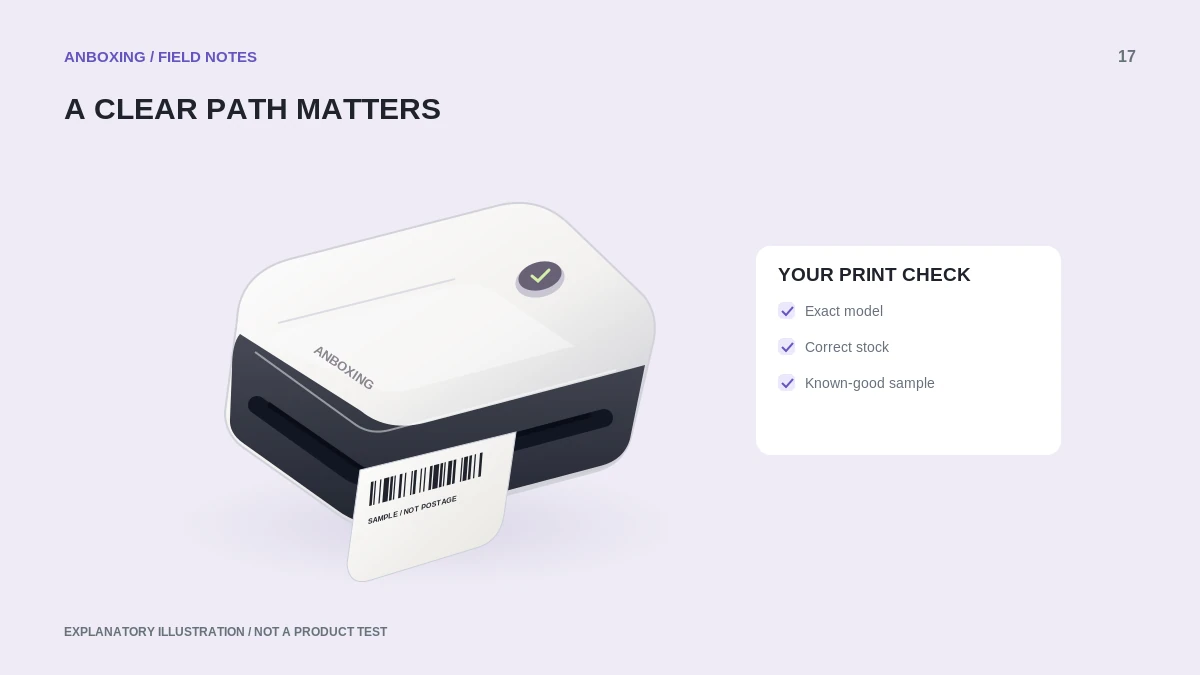
Protect the order sequence
Stop new print submissions and identify the last complete label. Keep partial labels separate and compare the remaining orders against the source PDF. Do not assume a torn or half-printed label is usable just because its address can be read.
Record the printer light or error message before turning it off. Check the exact model guide for that signal. A flashing light can mean different things on different printers.
Does it stop at the same page?
| Repeat pattern | Next comparison |
|---|---|
| Same document page every time | Print that page alone from the original PDF. |
| After a varying number of labels | Observe feed path, connection, and reported status. |
| At a dense black area | Compare artwork and manufacturer density guidance. |
| After the computer sleeps or disconnects | Check the queue and supported connection route. |
Use a short batch of distinct pages for the comparison. Several copies of one easy page may fail to reproduce the document feature causing the original problem.
Check heat and media without defeating protection
Rollo documents that excessive density for a particular stock can make labels stick during dark areas. Its USB manual also describes an overheating indication and automatic resumption after cooling. Those are model-specific possibilities, not a diagnosis for every stopped printer.
Rollo: labels stick or stop during printing Rollo: USB model user guide and maintenance precautions
- Make sure the incoming stock can move freely and the outgoing labels are not piling up against the slot.
- Use the normal settings recommended for the exact printer and material. Do not begin with maximum darkness.
- Let a temperature-related pause resolve as the model instructions require. Do not defeat sensors or cool the print head with liquid.
- If a jam is present, stop and follow the safe jam-clearing instructions for the model.
- After recovery, print the next required label only, then a small batch.
Separate job transfer from printer behavior
Look at the computer or app queue. A waiting job and an empty queue point to different next questions. Try the known-good file through the same supported connection, then simplify the connection only if necessary. Avoid repeatedly purchasing new postage as a printing test.
For support, save the page number, batch size, actual error, material name, darkness setting, and connection method. Redact customer data from sample labels. Those details make it possible to compare a document problem with a recurring physical or connection problem without guessing at an internal repair.
Common questions
Should I immediately resend the whole batch?
No. Identify which labels completed and clear the outstanding job state first.
Is stopping mid-batch always overheating?
No. A repeatable problem page, a jam, or a lost connection can produce a similar interruption.
Sources & scope
Source-based editorial guide. Primary references checked September 9, 2026. Diagnostic sequences and comparisons are editorial guidance, not results of hands-on product tests. Confirm current instructions and compatibility for your exact model.