Stop sending duplicate jobs. Check power and device errors, identify the intended connection, and verify the active queue before reinstalling or resetting the printer.
Offline describes what a computer or app believes about a destination. It does not, by itself, identify a broken printhead or unsuitable label stock. The most useful first step is to find the point where the workflow stops: device, connection, queue, or application.
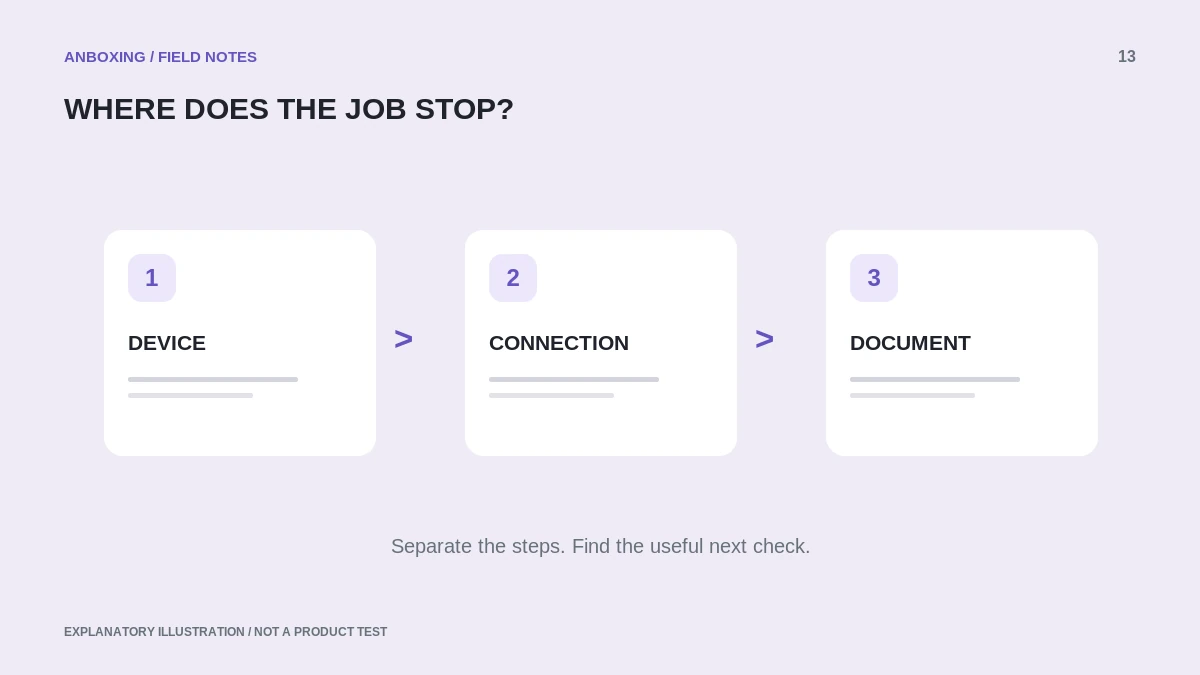
Start at the printer
Check that the device powers on normally and does not display a documented error. Look for an open cover, exhausted stock, or a blocked feed path without reaching into a moving printer. Use the exact model’s indicator guide rather than interpreting every flashing light the same way.
When safe and supported, try the model’s own feed or test routine. A successful local test narrows the investigation toward the sending device and connection. It does not prove that a network job can reach the printer.
Follow the connection you actually use
| Connection | First controlled checks |
|---|---|
| USB | Correct cable path, connected port, and queue associated with that connection. |
| Wi-Fi or Ethernet | Printer connection, intended local network, and permitted device discovery. |
| Bluetooth or a phone app | Exact model support, required app or driver, and the documented pairing route. |
| Shared printer | Host availability and approved shared-print setup. |
Do not make unrelated router or firewall changes as an experiment. On a business network, involve the administrator and describe which device can or cannot discover the printer.
Check the queue before sending more copies
Rollo documents cases where an old USB queue remains selected after a port change. The familiar printer name can therefore be misleading. Select the current connection and compare a single sample job.
- Cancel only the stale jobs you recognize; consider other users before changing a shared queue.
- Verify the destination selected inside the application.
- Check whether the queue is paused or reports an error.
- Send one known-good sample and observe whether it reaches the queue and printer.
- If the queue never receives it, investigate the application; if it receives but cannot send it, investigate the connection.
Use operating-system recovery carefully
Microsoft provides an offline-printer troubleshooter and steps for checking queues and connections. Prefer that supported route before manual service or system-folder changes. Follow any more specific instructions provided by the printer manufacturer.
Before removing a printer or resetting its network settings, record the working parts of the configuration. A reset can make diagnosis harder by removing the evidence of what previously worked. Recreate only the connection you intend to test.
Escalate with evidence
Send support the model, operating system, connection type, indicator state, local-test result, and sample-job behavior. Remove addresses, tracking numbers, passwords, and customer data from screenshots. Include the last known working configuration and what changed.
Common questions
Why does the printer feed but Windows says offline?
Feeding is a local device action; Windows still needs a working connection and correct queue to send a document.
Should I buy a new printer after one offline message?
Not before checking the connection and queue. A model-supported local test and controlled sample job provide more useful evidence than the status label alone.
Sources & scope
Source-based editorial guide. Official documentation checked September 6, 2026. No hands-on product testing is claimed. Interfaces and compatibility can change; use the current instructions for your exact model.
- Rollo: nothing happens when printing
- Microsoft: offline printer troubleshooting
- Apple: add a printer on Mac
Illustrations explain a workflow or concept and are not evidence of product testing. Read the label-printer editorial policy.