Select the shipping label document and paper size appropriate to the printer. Treat packing slips and customs forms as separate documents when they require different sizes or handling.
Shopify can produce more than one kind of shipping document. Sending all of them through a thermal-label preset is a common way to create tiny pages, cut-off forms, or unexpected extra output. Start by identifying what each document is for.
Verify account and shipment eligibility
Shopify’s shipping-label features depend on supported carriers, fulfillment locations, and shipment details. Its guidance allows a desktop printer or supported label printer. A printer purchase alone does not establish account or carrier eligibility.
Before printing, confirm the order, package information, and selected service. Keep label-purchase decisions separate from the physical print test so a connection problem does not lead you to buy unnecessary duplicate postage.
Print one known order first
- Open the order or the shipping-label management area in your Shopify workflow.
- Select the shipping-label document you intend to print.
- Choose the paper size appropriate to the actual printer and stock.
- Open the original document and inspect the complete preview.
- Select the verified printer queue, page range, and copy count.
- Print one label, compare it to the order, and inspect all required marks.
- Only then move to a larger batch.
Keep unlike documents apart
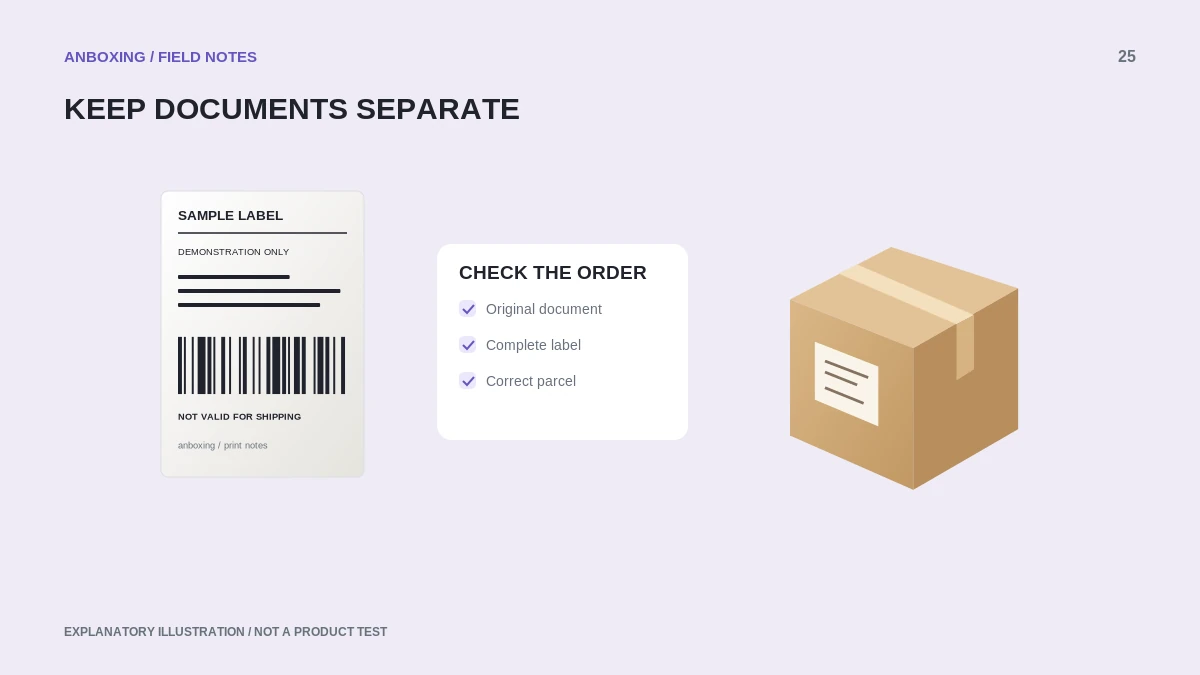
Shopify’s printing guidance distinguishes shipping labels, packing slips, and customs forms, and notes that different document sizes can open in separate files. Required customs handling depends on the shipment. Do not assume a missing popup means the additional document was unnecessary.
| Document | Practical check |
|---|---|
| Shipping label | Correct parcel, complete carrier information, and matching media. |
| Packing slip | Correct order contents and suitable print format. |
| Customs or other accompanying document | Whether it is required and how the carrier says to print and attach it. |
Recover from a batch interruption carefully
A jam, canceled job, or missing page can break the order of a printed stack. Pause packing, identify the last confirmed order-label pair, and resume from a known point. Do not solve uncertainty by printing the entire batch again and mixing duplicates with the first stack.
Keep invalid copies clearly separated from labels ready to use. Reprinting an existing document is not the same as buying a replacement shipment label. Follow Shopify’s current management workflow when shipment information needs correction.
Diagnose print defects outside the batch
If labels are tiny, inspect the source-page size. If they are clipped, compare stock and print dimensions. If the printer goes offline, stop the batch and use a non-postage sample to verify the connection. Return to the actual order only after the known-good test succeeds.
Write down your working app, printer, document type, and stock preset. For a team, put those choices into a packing-station checklist. Consistent inputs make it easier to identify the change that caused the next problem.
Common questions
Can I send packing slips and labels through the same preset?
Only when the documented workflow and media are appropriate for both. Different sizes should be handled deliberately rather than forced onto one stock.
Does Shopify require a thermal label printer?
Its guidance includes supported desktop printing as well as label printers. Match the hardware and document workflow to your operation.
Sources & scope
Source-based editorial guide. Official documentation checked September 6, 2026. No hands-on product testing is claimed. Interfaces and compatibility can change; use the current instructions for your exact model.
Illustrations explain a workflow or concept and are not evidence of product testing. Read the label-printer editorial policy.