Try the same file and printer directly connected to the computer, using a supported data cable. Change one connection component at a time.
A hub is a useful suspect, not an automatic diagnosis. The point of bypassing it is to create a simpler comparison, while leaving the document, printer, stock, and print settings unchanged.
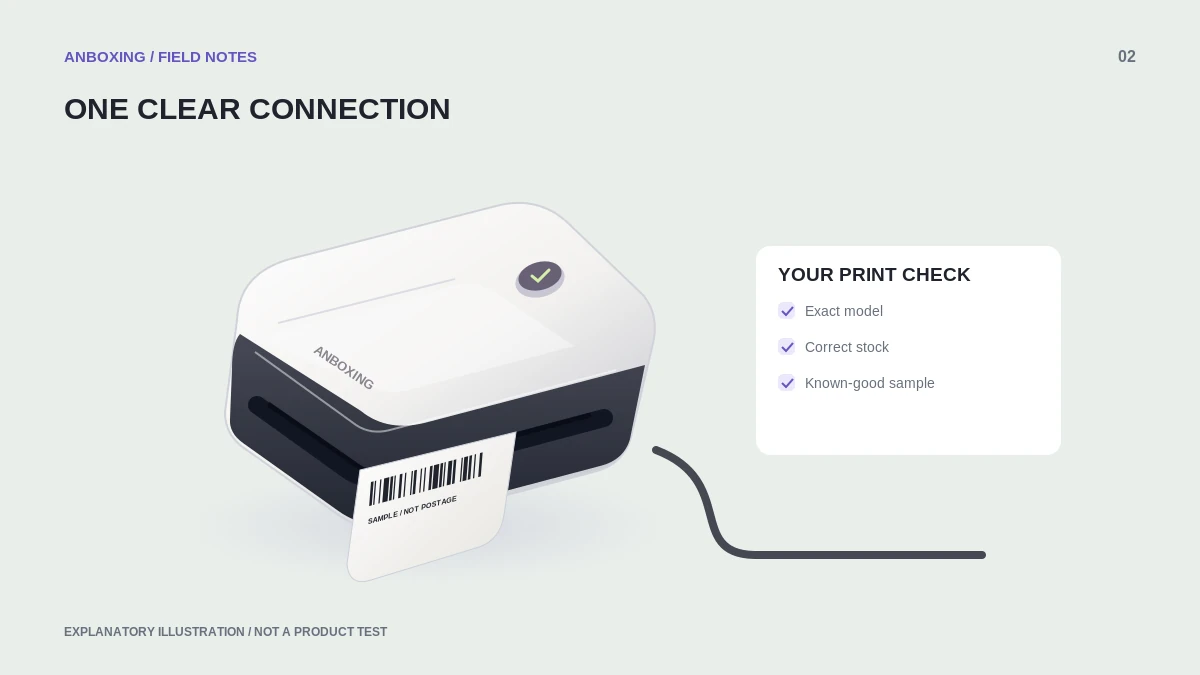
Create a direct-connection baseline
Cancel pending jobs before changing the cable route so old work does not emerge unexpectedly when the connection returns. Keep the printer’s manufacturer-specified power adapter in use; do not assume a USB hub is intended to power a desktop label printer.
Microsoft’s troubleshooting guidance emphasizes checking the printer cable and the connection to the computer. For this test, use a known-good supported data cable and a direct port where the computer provides one.
Microsoft: printer connection and printing troubleshooting
- Save a small original PDF that previously printed correctly.
- Disconnect the hub from the printer data path, without changing the printer’s approved power arrangement.
- Connect the printer directly to the computer. If an adapter is necessary, use a supported data adapter and note it in the test.
- Confirm which queue corresponds to the current connection.
- Print one page, then a small set of distinct labels. Record whether the queue stalls, the device disappears, or only the output changes.
Add components back one at a time
| Comparison | What it helps isolate |
|---|---|
| Direct port works; hub fails | Hub route, port, compatibility, or connection stability. |
| One cable works; another fails | Cable or connector, without proving why it failed. |
| All routes fail with one PDF only | Document or application rather than the hub alone. |
| Device stays connected but prints tiny labels | Paper settings, not a disconnect. |
Do not combine a new cable, new hub, different driver, and new PDF in one test. A successful result would not tell you which change mattered.
Check for duplicate queues
Reconnect deliberately and inspect the selected printer name each time. An old queue may remain available even when its connection is no longer the one you are using. The Rollo USB manual specifically advises consistent USB-port use to avoid duplicate printer entries for that model.
Rollo: USB model user guide and maintenance precautions
Avoid removing every installed printer just because one queue is confusing. Record existing settings first, and remove a duplicate only after you have identified the working queue.
When to stop experimenting
Stop using a cable, adapter, or hub with damaged connectors, unusual heat, or an electrical smell. Replace questionable equipment through the appropriate vendor rather than bypassing power protection or opening the printer.
If the direct connection remains reliable and the hub path repeatedly fails, give support the exact computer, operating system, printer, hub, cable, and port information. That is more actionable than saying that USB is broken. A powered hub may be appropriate in some setups, but it is not a guaranteed cure for driver or data compatibility problems.
Common questions
Does a USB-C connector guarantee printer support?
No. It describes the connector, not every supported data function or operating-system driver.
Should I change label darkness to fix disconnections?
No. Keep print settings stable while isolating the connection path.
Sources & scope
Source-based editorial guide. Primary references checked September 9, 2026. Diagnostic sequences and comparisons are editorial guidance, not results of hands-on product tests. Confirm current instructions and compatibility for your exact model.